
 https://doi.org/10.46430/phen0136
Contents
- Introduction
- Introduction to 3D Modelling
- Exploring Models with the three.js Editor
- Building an Interactive 3D Website with the three.js JavaScript Library
- Conclusion
- Endnotes
Introduction
Advances in computing continue to increase our ability to display 3D models on websites, create virtual museums, and make heritage information more accessible. The use of interactive 3D models on websites enables examples of archaeological and historical material culture to be presented more effectively. 3D models are generally more engaging than 2D images, largely because the extra dimension encourages user interaction. The act of moving around a model and choosing which areas to examine and learn more about creates a more personalised experience, contributing to the user forming a relationship with the model. This relationship can be further strengthened if the model can be manipulated or incorporated into a game, especially a puzzle. Puzzles increase the amount of time users spend with a model and can encourage them to notice details they might otherwise overlook. The sense of achievement that comes from solving a puzzle can also help strengthen a positive relationship with a model and its subject.
This lesson is the first in a two-part series that introduces three.js (a JavaScript library) as a tool for creating engaging digital research outputs using 3D models. Together, the lessons show how to use three.js to create a website and (optionally) a game, ‘The Jars of Papua’, featuring interactive 3D models that illustrate the diversity of pottery technologies across communities in the Papua New Guinea region. In this lesson, Part 1, you will learn about the basic components of 3D models and how to use three.js to create a website featuring a 3D model of multiple ceramic vessels (such as pots or jars) displayed on a map of Papua New Guinea. Part 2 builds on this foundation. In that lesson, you will create a more complex interactive website in which selecting a vessel reveals information about the local community and their ceramics. Part 2 also shows how to create a matching puzzle in which users match ceramics to the community that created them (if a vessel is dragged to the corresponding community, the background colour of the scene changes).
Why Use 3D Models for Cultural Heritage
Web models and digital games can help the dissemination of archaeological information. Rather than solely writing texts about artefacts, providing communities with opportunities for more direct engagement with the archaeological past can be considered a goal of archaeologists1. Virtual (or printed) cultural heritage models have the advantage that they can be inspected without the risk of damaging an archaeological artefact. They can also be inspected at different scales: houses, sites, or villages can be scaled down to reveal how different areas relate to one another, while small artefacts, such as coins, can be magnified so that small details can be more easily seen. In these two lessons, vessels are scaled down so that many can be compared and placed on a geographic map. This kind of visual and geographical placement can help communicate the links between artefacts and their creators more vividly than a simple label. Finally, the use of models can also ideally help reduce the removal, and facilitate the return, of original artefacts to the communities that created them and their descendants.
3D modelling is not only an engaging way of disseminating information; it can also be a valuable tool for revealing relationships and supporting new insights. For example, comparing aspects of material culture, such as pottery, across communities can help explore shared histories. For pottery, these comparisons may be based on appearance (form and decoration) and methods of production. However, the ways in which these forms and techniques spread may vary. Similarities do not necessarily reflect population movement alone2, especially in the case of material culture, as ideas and techniques can spread through one culture learning from another as well as through innovations within a community3. Comparing different pottery styles can therefore help investigate shared heritages, community contacts, and local innovations. Visualising pottery forms and their geographic distribution through 3D modelling helps illustrate these relationships, especially when annotated with additional information such as the language family of the community4, 5.
Lesson Goals
This two-part lesson series provides a brief introduction to creating websites with 3D models using three.js.
Part 1 starts by introducing fundamental concepts and components of 3D models along with some of the ethical considerations involved in generating and using 3D models when working with cultural heritage. You will then explore those concepts and components in practice, using an example 3D model of ceramics from Papua New Guinea (provided by the authors) and the three.js web editor. The three.js editor is a browser-based tool that allows you to view and interact with 3D models without writing any code. Finally, you will use the three.js JavaScript library to create a webpage featuring the example 3D model of Papua New Guinea pottery displayed on a map. You will be provided with pre-written code snippets that you will copy-paste, add to, and modify step by step. In doing so, you will learn how to set up a scene (the 3D space that contains the model), define a camera (the viewpoint from which users view the model), add lighting (to make the model objects visible and more realistic), and add navigation (such as mouse controls) to allow users to move around the scene.
In Part 2, you will build on this foundation to create a more interactive website for ‘The Jars of Papua’ using three.js. You will learn how to work with multiple models, allow users to select and interact with them, and display additional information in response to user actions. You will also explore how to turn the scene into an interactive game, where models are initially positioned randomly and can be moved and matched to their corresponding communities. You will do this by setting up a test in the code to run each time a model is moved, checking whether it has been placed in the correct position. Successful matches trigger a background colour change.
Software Requirements and Installation
To complete this lesson, you will need a few basic tools and some familiarity with simple web and programming concepts. No prior experience with 3D modelling or three.js is required.
Web Browser
You will need a modern browser (such as Chrome, Safari, or Edge). Most current web browsers should work, although some versions of Safari can have problems. If your browser can display the three.js site and the various sample projects on the home page, it should work.
When building a website, it is useful to be able to identify and fix any problems that may arise (a process known as debugging). Browsers include built-in developer tools that help with this. In particular, the console displays error messages that can help you understand why something is not working. In Chrome, you can open the console via: View > Developer > JavaScript Console. If your webpage is not loading as expected, checking the console is often the first step. You can then search online for explanations of any error messages you encounter. You may also need to reload the page while the console is open to see the error messages. For more information on debugging code, see the three.js manual.
Web Development
In the first half of this lesson, you will explore models without writing code. In the second part of the lesson, you will use code to create a webpage. Webpages are typically built using three main computer languages: HTML (defines structure), CSS (defines appearance), and JavaScript (defines behaviour). This lesson focuses on JavaScript and does not explain HTML or CSS in detail. You do not need prior knowledge of these languages to complete the lesson, but some familiarity may help you follow the code more easily. If you want to learn more about the basic components of a website, w3schools provides a guide and tutorials on HTML, CSS, and JavaScript.
Text Editor and Terminal
To write and run code, you will need a text editor and a computer terminal (for example, Windows PowerShell, the terminal in macOS or Linux, or the text editor’s terminal). In this lesson, you will use Visual Studio Code (VSC), which includes both a text editor and a terminal. It can be downloaded from https://code.visualstudio.com. Follow the website instructions to install it. It is free and available for Windows, macOS, and Linux. Many extensions are available for VSC, and syntax highlighting (code colouring) can help detect issues such as unclosed tags or quotes.
You can open the terminal in VS Code via: Terminal > New Terminal. You will use the terminal to run a few simple commands. No advanced knowledge is required, although some familiarity with basic command line usage can be helpful. Mainly, you will need to be able to check which folder you are working in and navigate to the correct folder. If you use the VS Code terminal, this is usually handled automatically when you open your project folder.
Node.js (for Running Your Webpage Locally)
To view your webpage while you are building it (for example, to check that the code is working or how changes affect your site), you will use a tool called Node.js.
Node.js allows you to run a local server that lets your browser load your files correctly (for example, at an address such as http://localhost:3000). This is necessary because some JavaScript features (including those used in this lesson) only work when files are served through a server.
Node.js is a free JavaScript tool and is available for Windows, macOS, and Linux. Follow the installation instructions on the website. To check that it is working, type the following in your terminal:
node -v
If installed correctly, you will get a version number. If you have problems installing Node.js, try using a search engine with the error message for help or watch one of the many tutorials available on the web.
The code used in this lesson has been tested with version 18.14.1.
Data for this Lesson
As an example case study, you will use a 3D model created by the authors. More information about the model as well as download instructions will be provided later in the lesson.
Papua New Guinea Pottery
In this two-part lesson series, you will focus on modelling the diversity of pottery across the Papua New Guinea region as a case study. This example helps show how 3D modelling can be used not only to visualise different styles and types of material artefacts, but also to provide a sense of their relationships to the communities that made them. Although pottery is not ubiquitous throughout Papua New Guinea and West Papua, many communities have a history of making ceramic vessels for use in cooking, storage or ceremonial purposes. Pottery was first introduced to the Papua region over 3000 years ago6 and the many different techniques, forms and decorations found are probably the result of a combination of local innovations and influences from different external sources. The technical and sometimes ceremonial or spiritual knowledge required to construct and decorate pots is passed down through generations or occasionally from community to community, in a process termed cultural transmission. In trying to understand this cultural transmission, researchers compare factors such as decoration, form and production techniques among the different communities.
3D modelling can be a useful approach for comparing these dynamics of transmission and explore the diversity and intricacies of material artefacts in the context of the communities that make them. For example, in the southeast, women’s pottery communities (including Mailu and Misima-Paneati speakers) employ a range of techniques, typically finishing vessels with rings made from clay coils and decorating them with predominantly geometric incised or appliqué designs. In many inland communities, potters (including Adzera, Dimiri and Iatmul speakers) use spiral (or ring) construction, building vessels by stacking circular clay coils, with decorations often incorporating sculptural elements and carvings. In coastal communities (including the Bilibil), women make paddle-and-anvil-made vessels from a ball of clay that is beaten on the outside with a wooden paddle, while a stone (anvil) is held inside the pot; these are generally rounder, less decorated and often used for water storage. In these lessons, you will be working with 29 models of ceramics that show examples of vessels made using different building and decorating techniques. In Part 2, step-by-step instructions will be provided for individually adding six models (from Bilibil, Mailu, Misima-Paneati, Adzera, Dimiri and Iatmul speakers), with the assets and information for another 23 provided for you to practise with.
Ethics of Modelling Cultural Heritage
How different communities feel about their cultural objects being modelled and represented on websites is an area that would benefit from further research. While virtual models and interactive websites have the ability to increase accessibility to cultural heritage and help effectively communicate academic research to a broader community, there are important ethical considerations that should be addressed when creating such resources. These apply both at the level of model creation and website design.
If the website is intended to communicate academic research, then community involvement and control should have occurred at an earlier stage of the research. However, as in other fields, technological advances have occurred that could not be foreseen by data/artefact collectors, and ideas around what constitutes ‘informed consent’ have also evolved. The use of cultural heritage models, especially from communities that have been exploited and looted, needs to be carefully considered. There are laws and guidelines, such as the UNESCO Convention for the Safeguarding of the Intangible Cultural Heritage, the Code of Cultural Heritage and Landscape (Italy) and the Protection of Movable Cultural Heritage Act (Australia) that back up these ethical concerns in many cases. Ideally, informed consent from the maker community, or their descendants, should be obtained for modelling cultural objects. In some countries, intellectual property legislation may require evidence that at least several attempts have been made to obtain permission.
Images of human remains can be offensive to some communities, so modelling them should be carefully considered and may require content warnings. ‘Utilitarian’ items are generally considered exempt from copyright, but some ceramics (or wooden/stone artefacts) have ceremonial purposes, and objects (particularly funerary artefacts) can also have different values and associations for different people and cultures, as highlighted by recent (2023) Native American Graves Protection and Repatriation (NAGPRA) legislation in the USA concerning the display of certain Native American objects (including burial pottery)7.
One approach for connecting media, including models, with cultural information, such as guidance on ethical reuse or cultural restrictions on viewing, involves the inclusion of Traditional Knowledge (TK) Labels in media metadata. The use of symbolic, less realistic representations of material culture is a related approach for minimising the use of potentially culturally inappropriate digital reproductions. As discussed later, this approach can have other advantages for use in games.
The available guidelines and protocols are generally more targeted at institutions, but it is worth considering Basic principle and tips for 3D digitisation of cultural heritage and Protocols for using First Nations cultural and intellectual property in the arts.
It is also important to reference the sources of images and models used in a website. In this lesson, references will be provided through an information panel on the website. The degree to which models of cultural artefacts are covered by copyright, and who that copyright belongs to (the creators of the original artefacts, the current ‘owners’ or caretakers of the artefacts, or the creators of the model), depends on several factors, and is not always clear-cut 8, 9, 10. Many researchers aim to make their models and site code available for others to use to increase the dissemination of information and promote further research. Often, models and code are given Creative Commons licences such as CC-BY-NC (Creative Commons Attribution-NonCommercial). However, it is always worth considering that your models may be used in virtual scenes you disagree with or find offensive, for example the pot models could be used in a potentially culturally derogatory manner such as illustrating cannibalism). While you can request users to only use your models and code for non-derogatory purposes, publicly available digital assets are increasingly being scraped by artificial intelligence (AI) ‘bots’, thus potentially contributing to models used in scenarios you did not foresee. The use of the NoAI HTML meta tag may help discourage such data harvesting.
When making games using cultural heritage models, it is also important to reflect on whether scenes or puzzles adopt a colonial approach. For example, rather than allowing the user to steal or ‘collect’ artefacts in a video game, a better aim might be to gamify the return of artefacts to their place or community of origin. In the puzzle in Part 2 of this lesson, the pots are matched to their original community, as represented as a place on the map.
Introduction to 3D Modelling
Basic Components of 3D Models
3D models are made from meshes: networks of nodes (points), also called vertices, connected by edges (lines) to form faces, also called polygons (Figure 1). These polygons are usually triangles (with 3 vertices) or quadrilaterals (with 4 vertices), and they can be combined to form a mesh (the 3D object). Some meshes are basic, predefined shapes such as spheres, cubes, planes, and tori (‘donuts’). These are known as ‘primitive’ models and can be created directly in three.js.
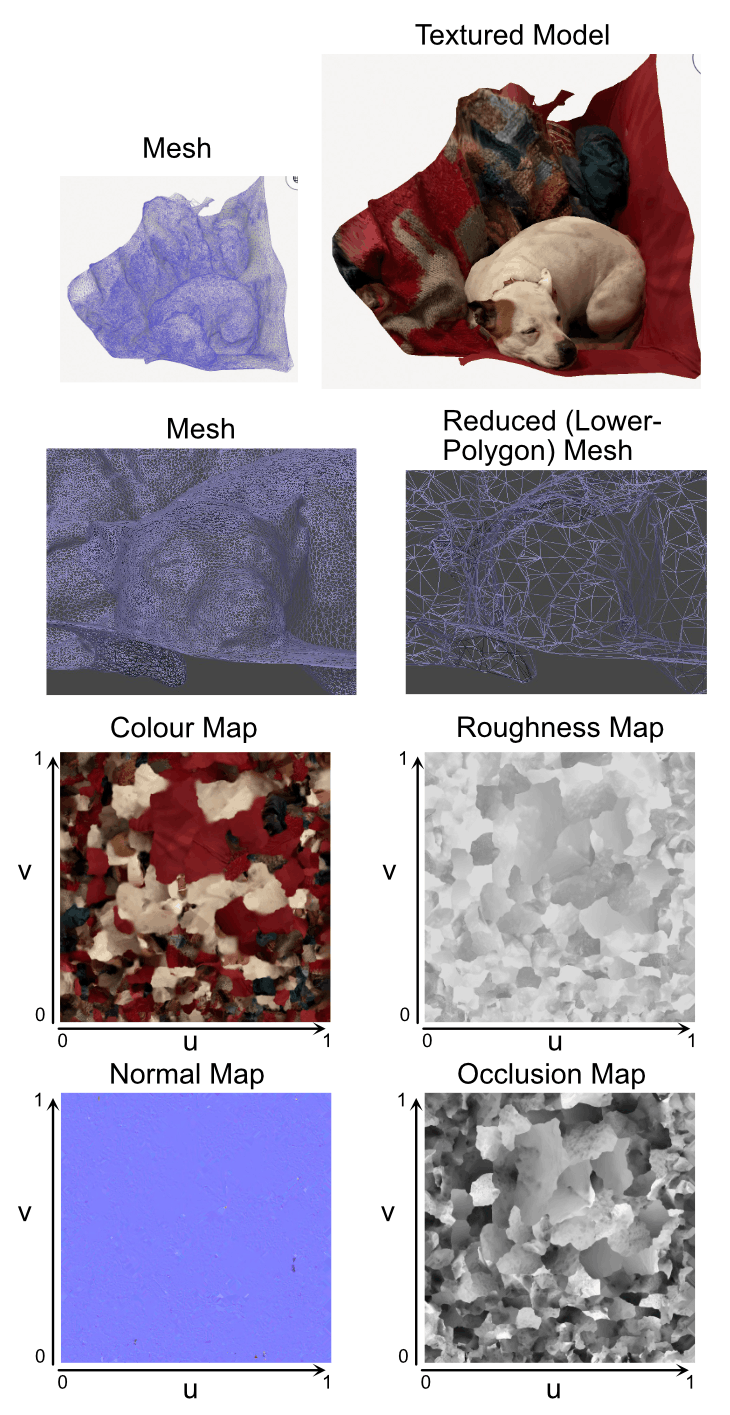
Figure 1. The mesh and maps (textures) for a model of a dog named ’Diva Demon’. A section of a reduced polygon mesh of the dog is shown for comparison. A patch of tan-coloured fur on the dog’s head, and its brown collar can be located in the colour map. See the model in SketchFab. Model created from a quick Polycam scan.
Some people like to build more complicated models by combining primitive models in three.js, but often these more complicated models are created with Computer Aided Design (CAD) software such as Blender or with scanning processes such as photogrammetry before they are imported into three.js as ‘complex’ models.
In photogrammetry, models are computed from a series of overlapping photographs of an object taken at various angles11. Photogrammetric models, including those from phone apps such as Polycam, will typically have image textures (discussed in the following paragraphs) and be realistic (Figure 1 and the left side of Figure 2). Models made using Blender or other CAD software may be symbolic (simplified forms that represent, rather than mimic, objects and their characteristic features), or they can be made more realistic with the addition of image textures or complex materials (right side of Figure 2).
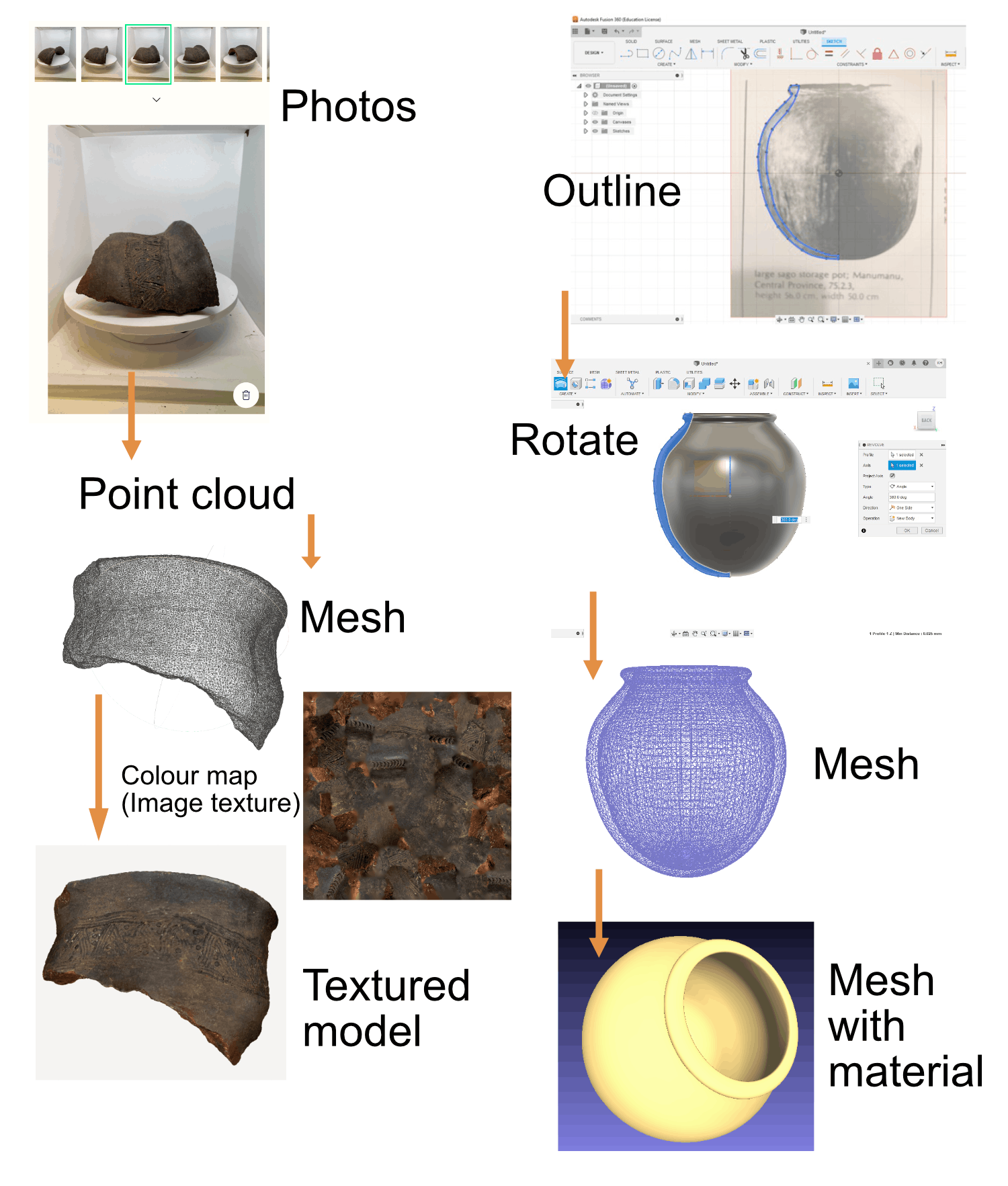
Figure 2. Models can be created by methods that include photogrammetry and Computer Aided Design (CAD). See the sherd model in SketchFab.
Meshes can be decorated with ‘materials’ that have colour and other properties such as emission, roughness, metalness, opacity, etc. They can also be decorated with ‘textures’, which are images that are applied to the surface of a model to give it colour and detail. Generally speaking, a material refers to how a surface behaves and its properties (colour, shininess, how it reacts to light), and a texture is an image applied to a surface.
Textures are two-dimensional image files with U (horizontal) coordinates from 0 to 1 and V (vertical) coordinates from 0 to 1 (Figures 1 and 2). Each vertex (node) in a model’s mesh is also assigned U and V coordinates (in a process called unwrapping). In texture mapping, these coordinates are used to match parts of the image to different surfaces (polygons) of the model. Each polygon in the mesh gets the pixels of the texture image that match the polygon defined by the UV coordinates. This allows the image to be ‘wrapped’ onto the 3D model as a colour map. If you inspect the colour map, mesh, and model in Figure 1, you should be able to see where parts of the map, such as the dog’s tan head spot and the collar, are matched to the mesh.
Textures with greyscale (from white to black) pixel intensities can also be used to convey other information, such as opacity (alpha maps), roughness (roughness maps), and shadow effects (occlusion maps) (Figure 1). Many 3D modellers will create normal maps for their models to simulate fine shape details. Although a polygon is flat, normal maps can be used to change how light interacts across the surface of a polygon to make it appear to have more complex details. The pixels in normal maps change how light sources interpret the direction in which different points in a polygon are ‘facing’, so that a flat polygon can appear to have a non-flat surface.
Normal maps are colour (RGB) images with the three channels (red, blue and green) providing information about surface direction. They are especially useful for (partly) retaining visual details when reducing the number of polygons in a model. Three.js can use normal maps, but for ‘The Jars of Papua’ interactive website in Part 2 you will only use colour map textures.
If you are interested in UV mapping, you can use the Model Inspector in the bottom right corner of many models in SketchFab, including ’Diva Demon’ (the dog) and the ’Papua Jars’. In the 3D + 2D view, you can see how the U and V coordinates on the model correspond to those on the texture map (Figure 3). The colour map texture (an image of a geographical map of Papua New Guinea) used in the lower model in Figure 3 is one of the textures that will be used in Part 2.
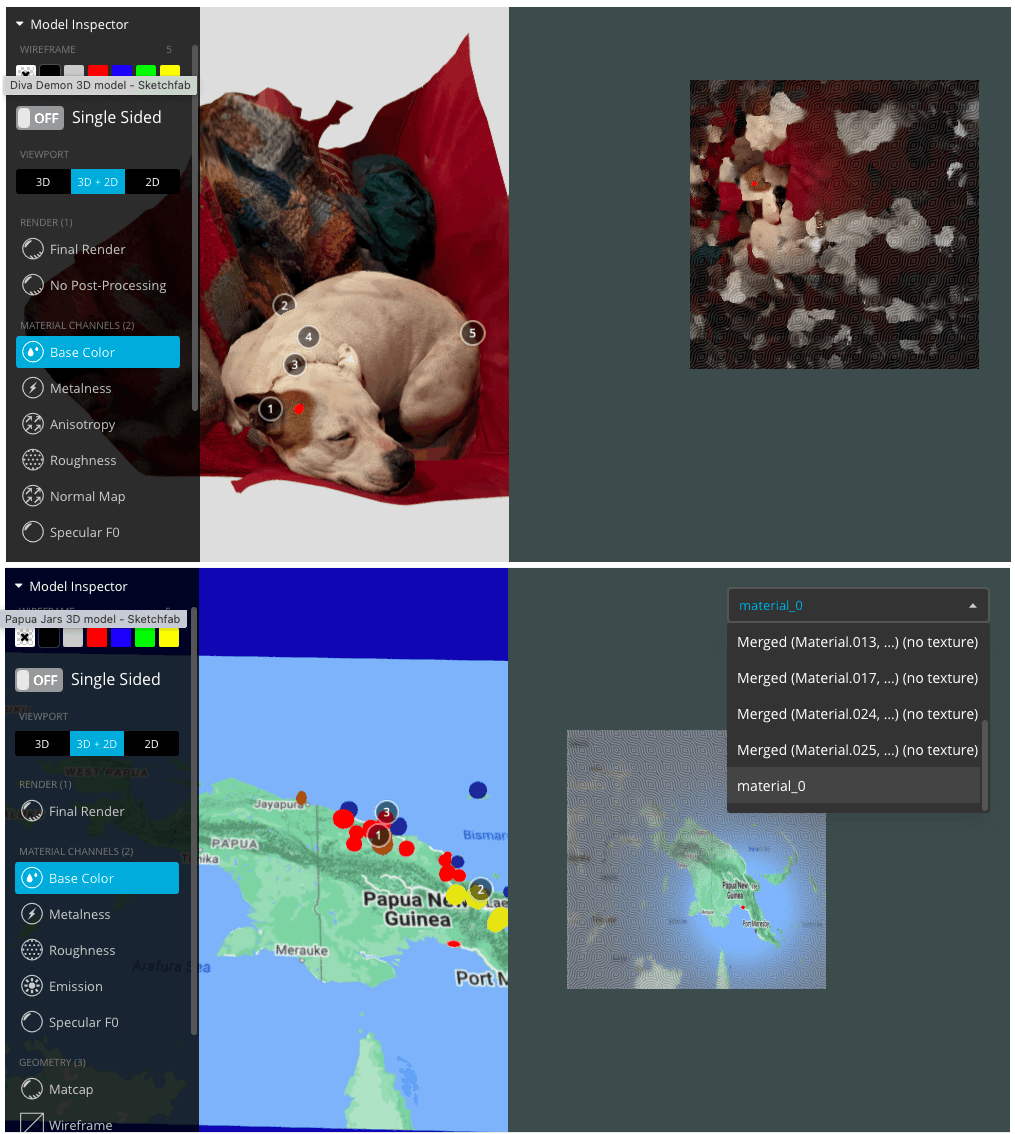
Figure 3. The Model Inspector in SketchFab for the dog and Papua Jars models. The Papua Jars model is a composite model whose components include a plane textured with a geographical map of Papua New Guinea.
Model File Formats
3D models can be stored in many different file formats. Some, such as STL, will only store the mesh. In this lesson, you will work with glTF (or .glb) files: the GL Transmission Format (glTF) or GL Transmission Format Binary (glb) file format is one of the formats that can store meshes, textures, materials, animations and other properties.
glTF/glb files (or rather, the meshes in them) can be compressed to reduce their file sizes, for example using DRACO compression. This can make models faster to download and load on a website. However, compressed files need to be decompressed before they can be displayed, which requires processing power (CPU). As a result, compressed files will not always load faster than uncompressed ones.
glTF/glb files can also store several models in a single file. If you are creating a scene with multiple models for a website, there are two main approaches. You can choose to import each of the different models into software such as Blender (or the three.js editor), where you position, scale, and colour/texture each of them, and then export the resulting composite model (the whole scene) as a single .glb file. This is the approach used here in Part 1 with the png_sceneDRACO.glb file. Alternatively, you can import the models individually and arrange and alter them via the website code, as you will do in Part 2. There is also the option of separating out individual models from a file of composite models using the website’s code, but this will not be covered in this lesson.
About the Models in this Lesson
The models you will use in this lesson were created by the authors (who are not of Pacific Islander heritage) using CAD software. They are intended to be symbolic rather than realistic. While simplifying some of the designs in this way means that some of the artistry of the original potteries is not fully represented, it helps avoid reproducing culturally sensitive designs and respects the moral rights of the original communities.
For this project, we chose to create symbolic models of non-ceremonial objects rather than realistic (photogrammetric) models. Creating realistic models would require the permission of the respective communities. Symbolic models were also used because they can convey the construction methods of the original vessels through the use of colour and a corresponding key. The method of construction is important not only for understanding the connections between the different pottery technologies, but also for the puzzle in Part 2, where colours act as the primary clues for users to match vessels to their communities.
The individual vessel models used in this project were originally created by one of the authors (K. Hardy) as part of an exercise to learn CAD for 3D printing12. The models were created using Blender and Fusion 360 by tracing or estimating the vessel profile (from the various sources cited in one of the information panels within the website’s 3D model), rotating the profile 360 degrees around the vertical axis, and then, if necessary, using the sculpting tools to add the decorations (right side of Figure 2). As the models were designed to be printed 5-10 cm tall, decoration was simplified and added to reflect the different decoration types favoured by the different communities, such as comb incision, impression, exposed coil and appliqué. Many communities produced more than one type of pot, and forms selected for the original printed collection were chosen to illustrate the variety of vessels in Papua.
For use on a website, Blender was used to reduce the polygon count of the models. The composite model (used in this lesson) was created in Blender, with the addition of the map (added via the ‘import image as planes’ extension). The individual vessel models (used in Part 2) were exported as DRACO-compressed glTF files.
These models have a CC BY-NC-SA 4.0 licence. The ‘BY’ (attribution) means that if they are used, reference should be made to the authors/creators. The ‘NC’ (non-commercial) part means the models can be used and modified, but not for commercial purposes. The ‘SA’ (share-alike) part means that if the models are re-used, the containing work must have a similar licence.
Alternatives to three.js for Creating Websites Featuring Models
In this lesson, we focus on the three.js JavaScript library because it is relatively easy to use for creating websites with 3D models, in part due to the large number of easily modifiable tutorial examples available. However, there are several alternatives for creating websites that include 3D models, which may be better suited to different coding abilities or types of projects. While this lesson focuses on three.js, many of the concepts covered here are also relevant to other JavaScript libraries, game engines (software used to build interactive 3D applications), and 3D modelling tools.
Some platforms host existing models and allow you to annotate and embed them in your own website. For example, many cultural heritage models are hosted on SketchFab13, which allows for (limited) interactive annotations, where informative text appears when users click on certain areas of the model (Figure 4). Models such as the ’Papua Jars’ or ’Diva Demon’ can be linked and embedded in other websites. Smithsonian Voyager, 3DHOP and Kompakkt also allow for models to be embedded in websites and offer more extensive model annotation. These platforms are useful for creating websites that present high-quality models alongside contextual information that appears as users interact with them. Researchers and students can also examine these models with measurement tools.
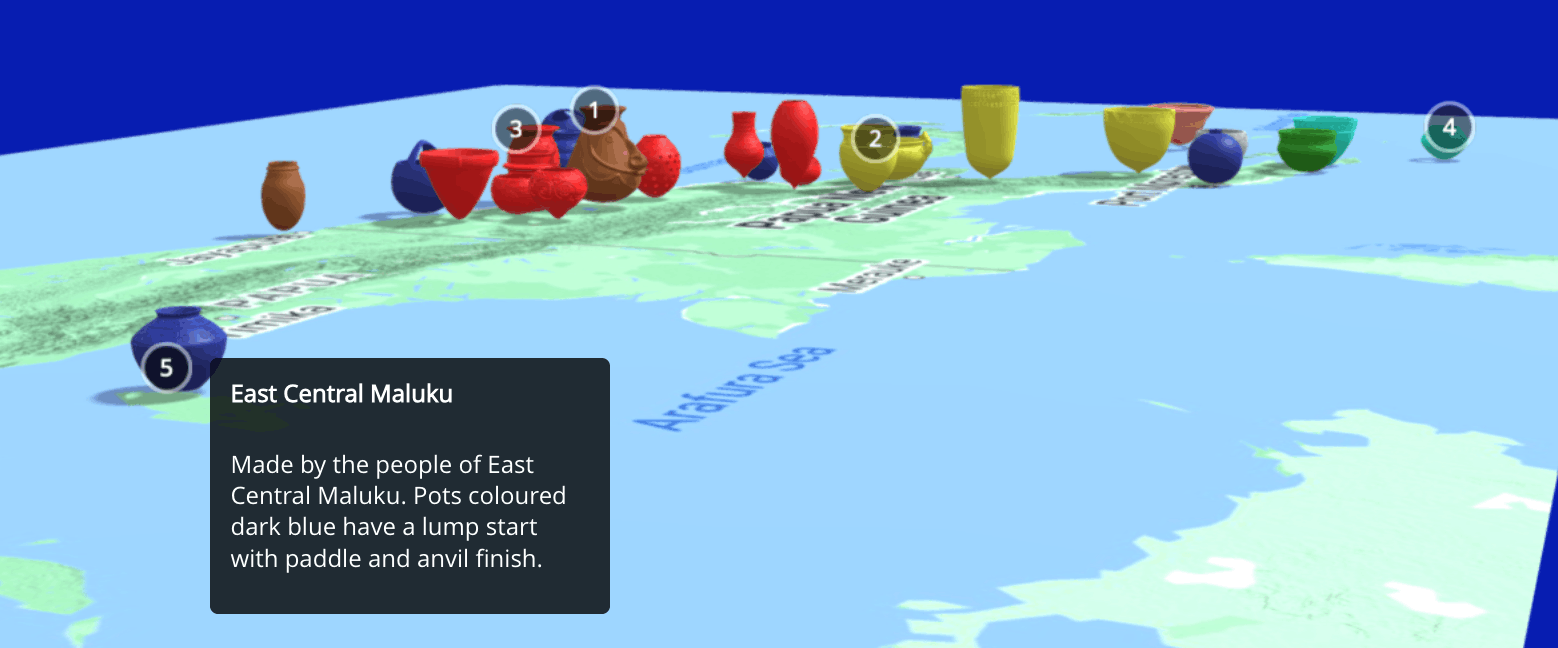
Figure 4. The Papua jar models in SketchFab with five annotations.
For more complex websites, such as those with multiple models that users can manipulate independently, or that require a test to see if models have been placed correctly relative to one another, JavaScript libraries, such as three.js and Babylon.js, or game engines such as Godot, Unity and Unreal Engine, are typically required. Some game engines also offer no-code approaches that might appeal to some users.
Another advantage of three.js is that it can be used to make websites viewable in virtual reality. Three.js, by itself, is not a physics engine, so it cannot generally simulate object interactions, such as detecting object collisions. It can be used with physics engine libraries, such as Ammo.js, Cannon.js or Rapier.js, as shown in some of these three.js physics examples. The Babylon.js library has greater built-in support for physical interactions and may therefore be a better option for digital exhibits that require more complex object interactions.
Exploring Models with the three.js Editor
In Part 2, you will build up ‘The Jars of Papua’ website from multiple models of jars and planes, but here you will start exploring the example composite pottery model using the three.js editor. You will explore how concepts discussed earlier — such as meshes, model formats and sizes, materials, textures, lighting, and position (coordinates) — work together within a 3D scene.
Download the composite model []png_sceneDRACO.glb](/assets/building-3d-environments-threejs-pt-1-2/png_sceneDRACO.glb) we’ve created for you to experiment with. Open the three.js editor in a new browser window (right-click on the link) and import the model with File > Import (Figure 5).
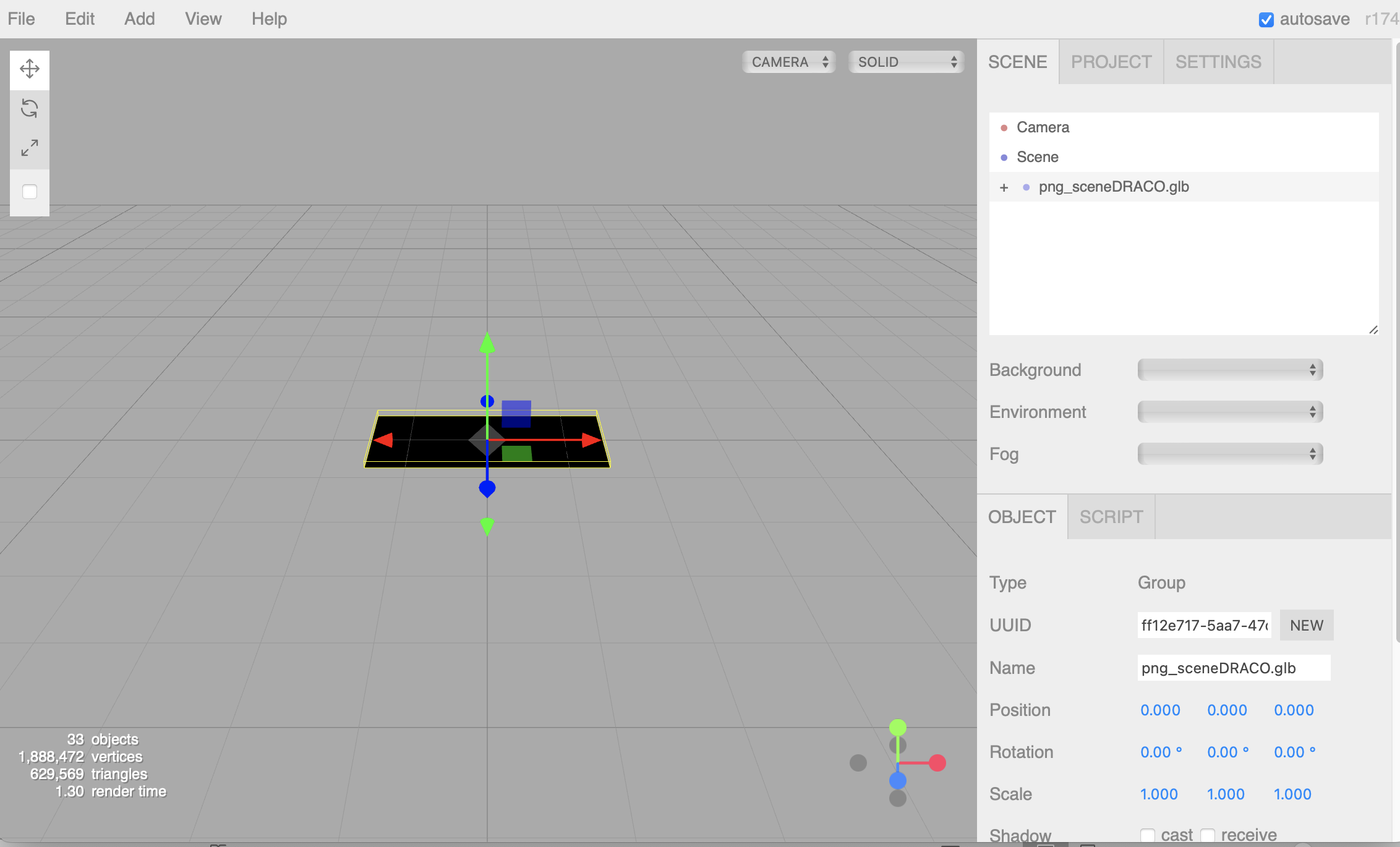
Figure 5. The three.js editor with the composite model imported.
Change the view from SOLID to WIREFRAME using the drop-down menu at the top right of the model view window, and zoom in and move around with your mouse. Expand the model hierarchy in the SCENE window/tab (on the right) by clicking on the + symbol next to png_sceneDRACO.glb and then the subsequent + symbols in the hierarchy. Double-click on a jar name (try aibom_LOC) and it should centre that jar. You can also double-click on a jar model in the main window.
You should be able to see that the jars (and the plane) are made of triangles (Figure 6). The fewer nodes or faces in the mesh, the smaller the model file size. Reducing the number of faces can reduce the level of detail in a model, but large model files may load slowly or be slow to respond on a website.
The number of nodes or faces in a model can be reduced using 3D modelling software such as Blender. The process of reducing the nodes or faces in a model is known as retopology. In Blender, this is relatively easy to do if the model is imported in STL format without an image texture. The individual jar models (used in Part 2) were designed and retopologised in Blender to file sizes under 700KB.
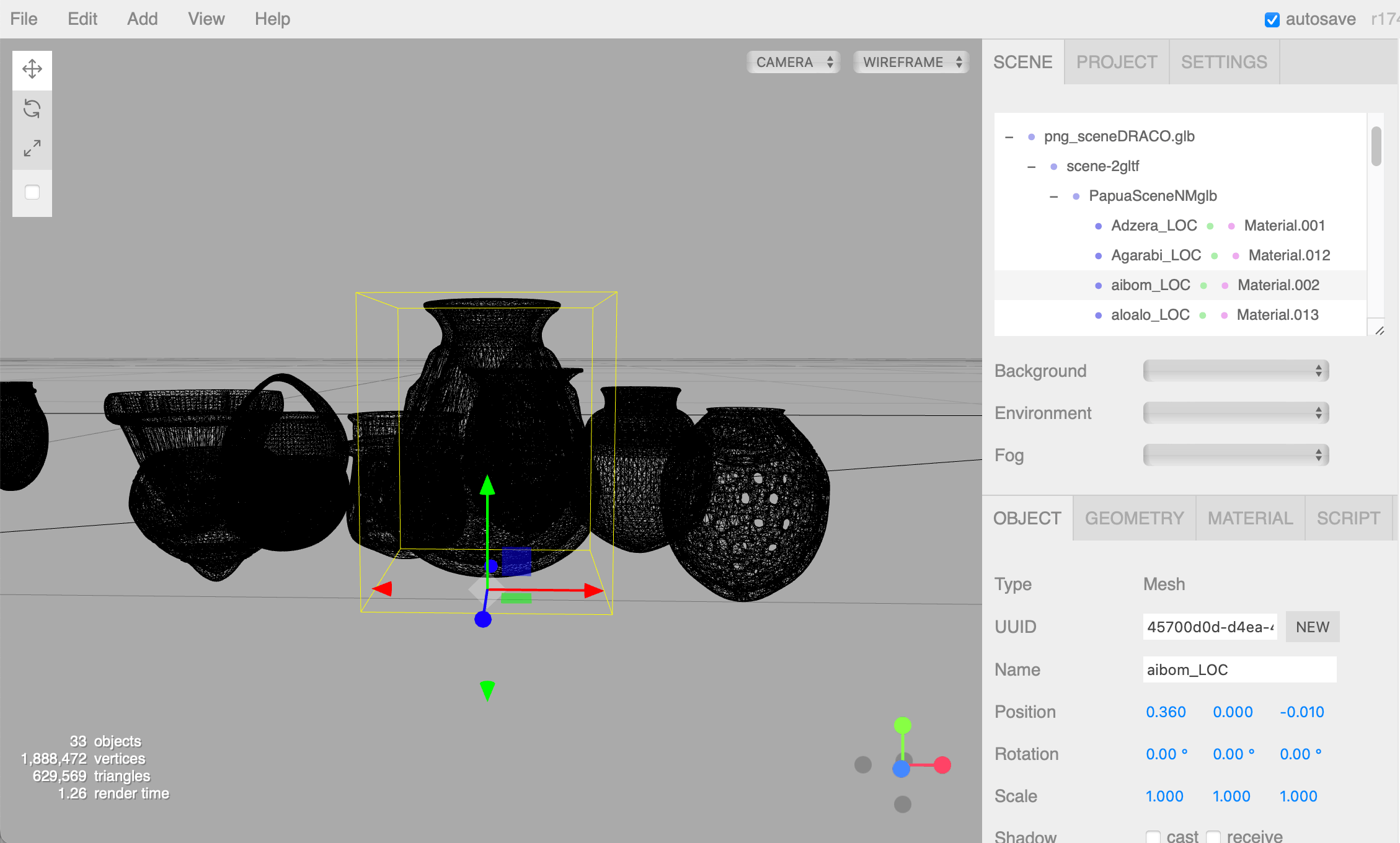
Figure 6. The three.js editor in wireframe view zoomed in on a jar mesh.
You may have models that you have created using photogrammetry, or downloaded from sites such as SketchFab, that have image textures. These are easier to retopologise in commercial software such as Agisoft’s Metashape, but it is also possible to use Blender or the free photogrammetry software Meshroom.
Before using your models on your website, it can be helpful to open them in a viewer to check that they load correctly and display as expected (for example, whether the textures appear correctly and whether the models are positioned and scaled correctly). You can test your models by importing them into the three.js editor or, if they are glTF files, in Don McCurdy’s glTF viewer.
When inspecting models, you may need to add or modify lights, as some materials are not visible without them. To do so, change WIREFRAME back to SOLID. In the editor, add a hemisphere light from the Add > Light > Hemisphere menu. If you select the hemisphere light in the SCENE tab, you can change the colour to white and the ground colour to black (Figure 7). This creates light that appears to come from above (like light from the sky) and gradually darkens towards the ground. You can use the editor to experiment with different lighting options and see how they make objects visible and affect how the model appears.
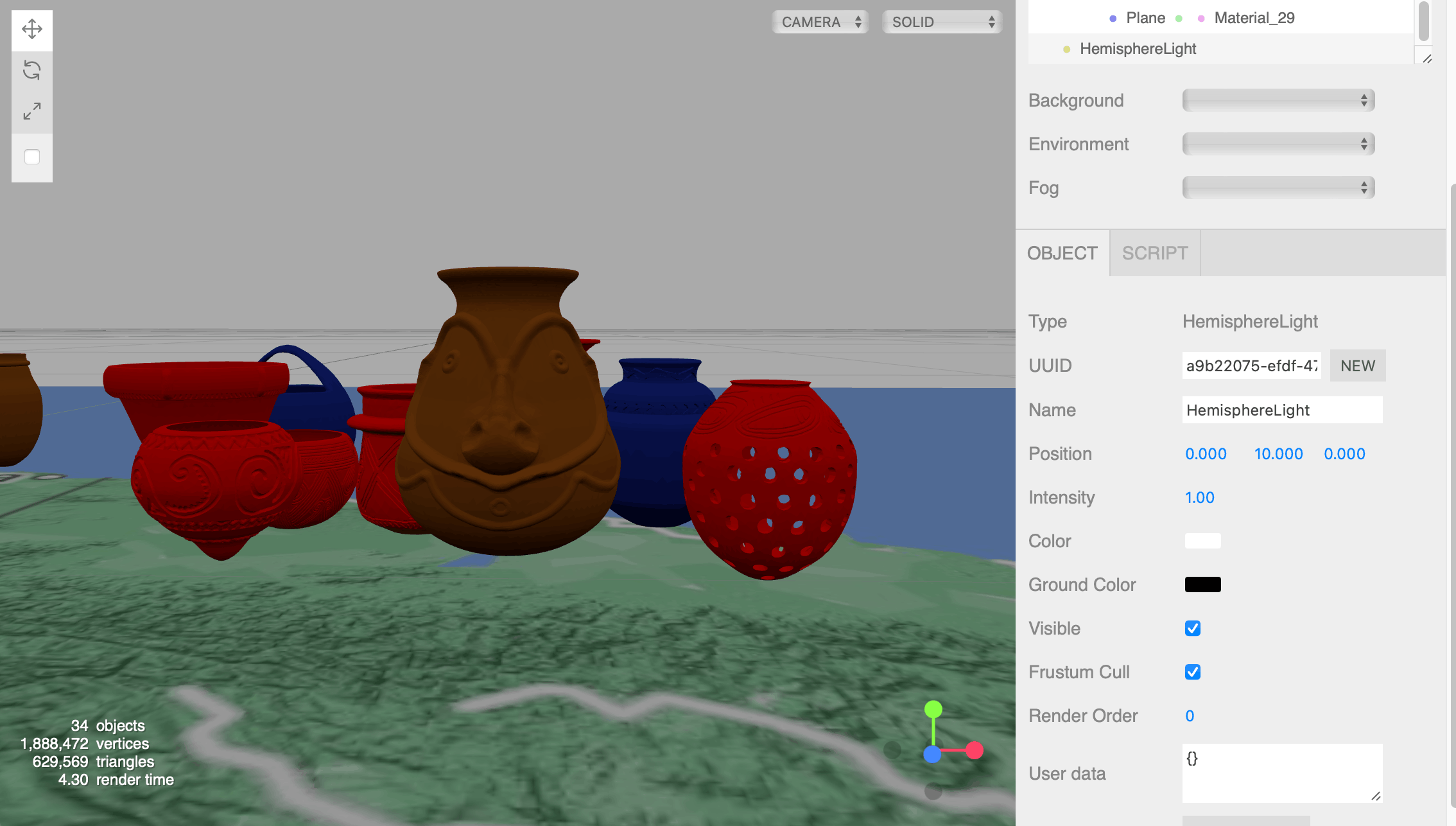
Figure 7. The jars under a hemisphere light.
If you zoom out, you can see the map. The jars are coloured because they have materials, which define how their surfaces appear. The map, by contrast, is a flat surface (a plane) with an image texture applied to it (Figure 8).
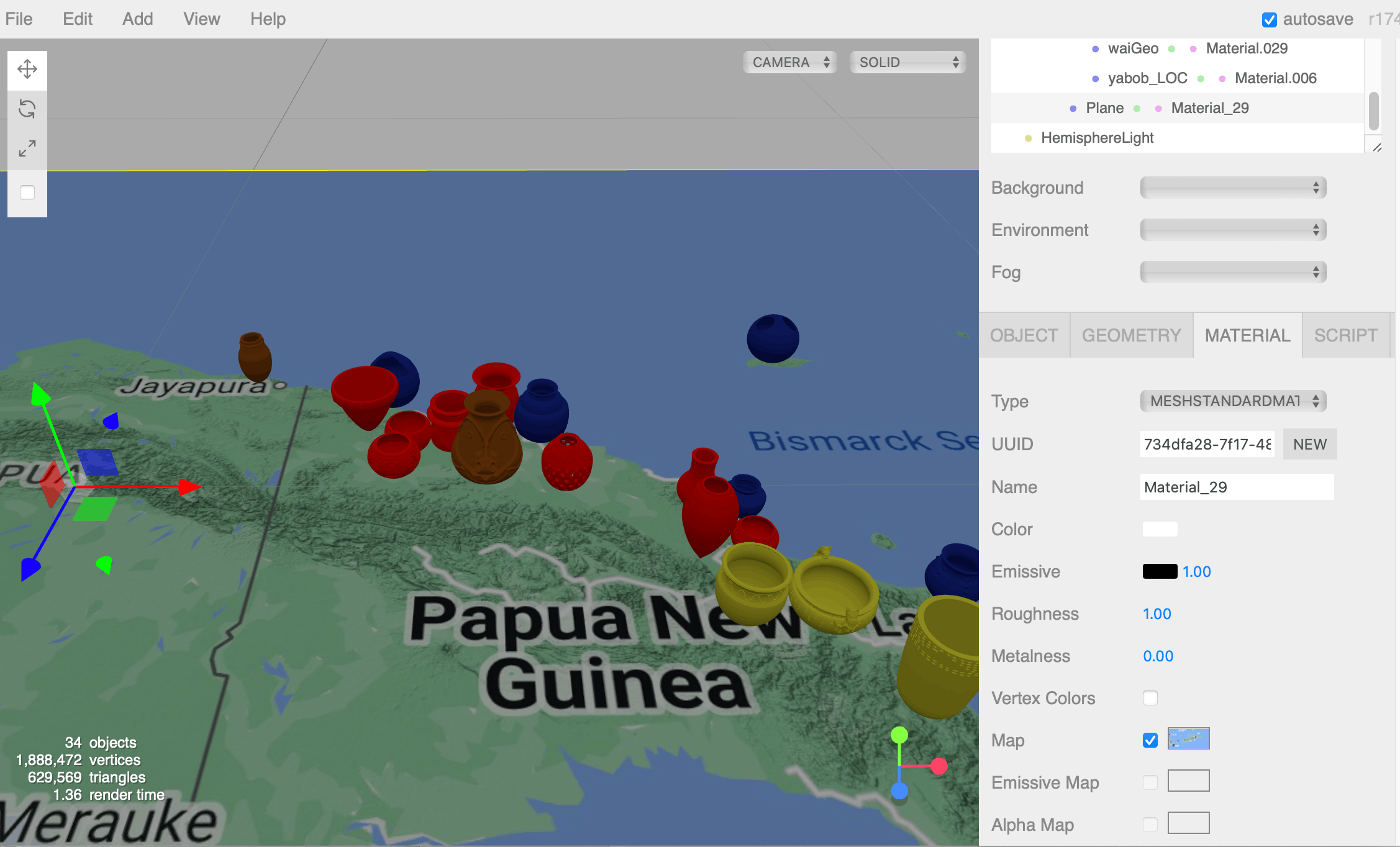
Figure 8. The Papua New Guinea map and its image texture (called a map in the Material tab).
Click on a jar. While in the editor, it is useful to look at the red, green, and blue arrows in the centre of the scene, which show the coordinate system. This system is used to position objects in 3D space.
Different graphics programs and game engines use different coordinate systems. In three.js, positions are defined using x, y, and z values. These values determine where an object is positioned in the scene. In three.js, x is left (-) and right (+), y is down (-) and up (+) and z is far (-) and near (+) (Figure 9). This is known as a Y-up, right-handed coordinate system.
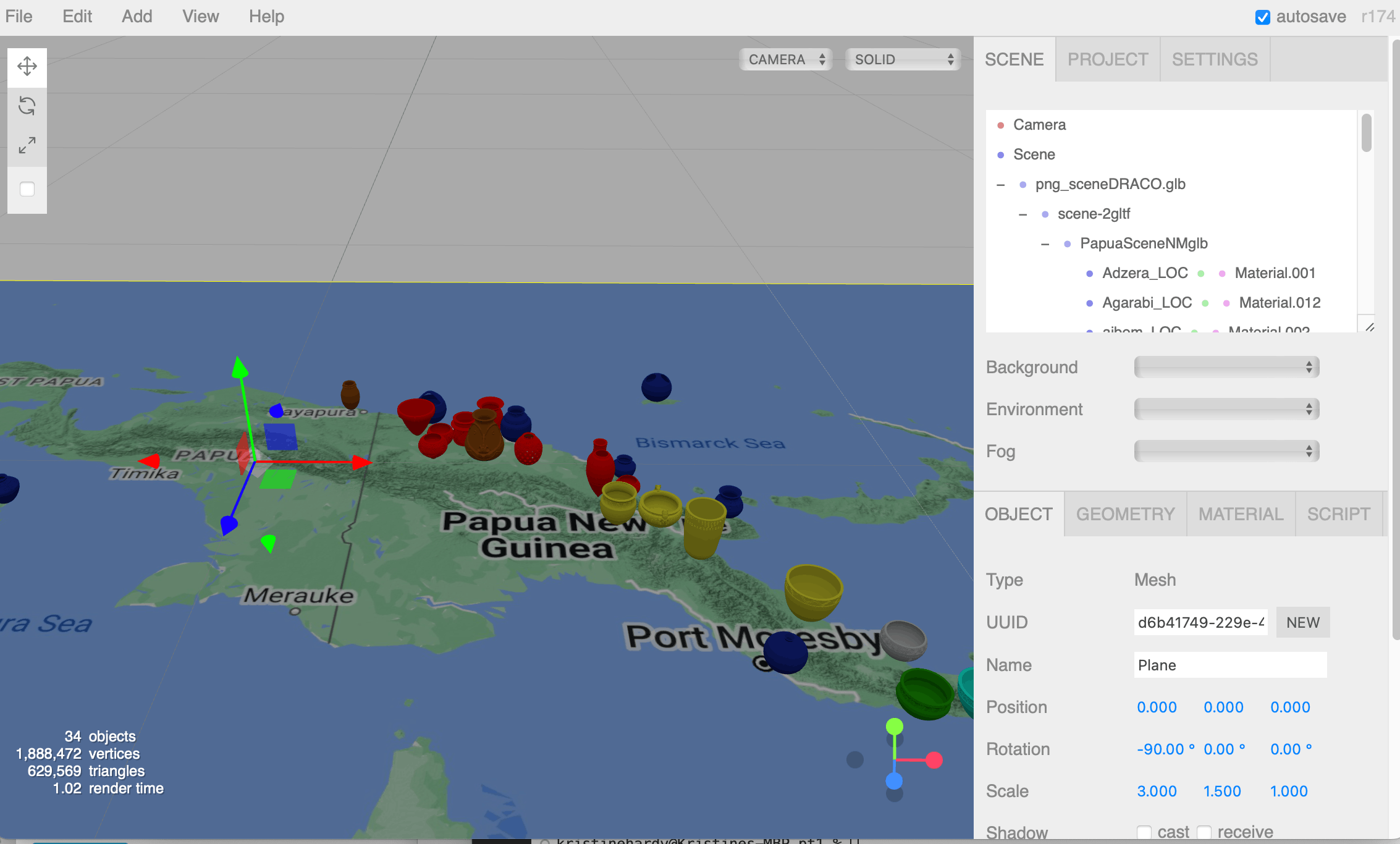
Figure 9. The three.js coordinate system. The red arrow shows the positive x direction, the green arrow shows the positive y direction, and the blue arrow shows the positive z direction.
If you select a jar and look in the OBJECT tab, you will see its x, y, and z position values; in other words, how it was placed (Figure 10). You can change these values and see how the jar moves. You can also change the scale or rotation of a jar and test how these transformations affect the model.
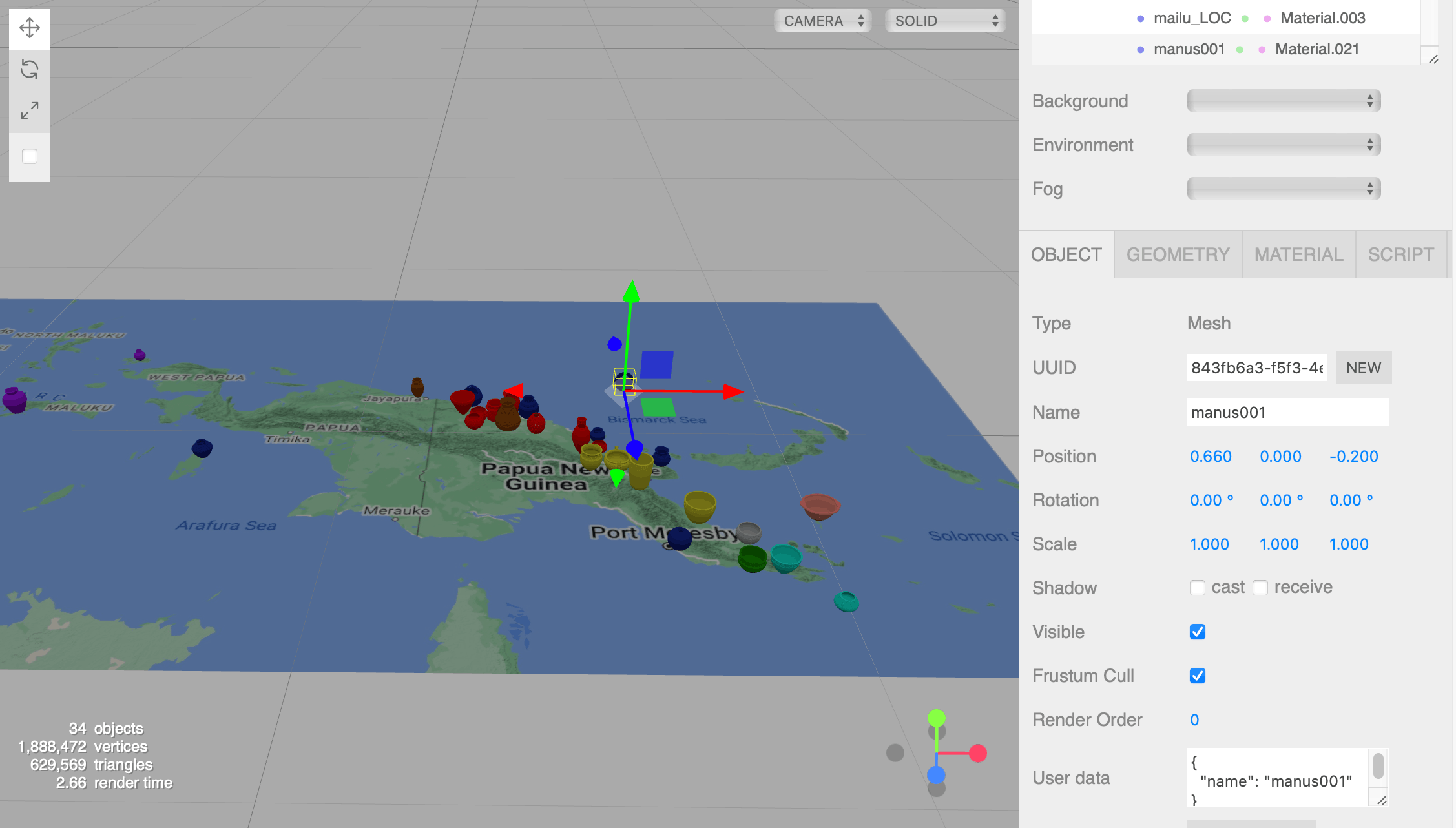
Figure 10. The position of the jar made by one of the communities on Manus Island.
Building an Interactive 3D Website with the three.js JavaScript Library
In the previous section, you gained familiarity with some basic concepts in 3D modelling and explored models in your browser using the three.js editor. In the following sections, you will begin working with the three.js library in code to create a website featuring 3D models. To do this, you will set up the project file structure and use the text editor Visual Studio Code (VSC) to create a webpage, set up a scene with a camera and lights, load the model, and add camera controls using the three.js library.
There are two main ways to use the three.js JavaScript library. This lesson uses the library via a content delivery network (CDN), which fetches and loads the library directly from an online server. The alternative is to download the library and manage it locally using build tools such as Vite. This approach is more flexible and is commonly used in larger or more complex projects, but it requires additional setup. For this lesson, the CDN approach keeps things simple and is sufficient for getting started.
This lesson uses three.js version 0.160.0, although it has been tested and works with later versions such as 0.166.1. If you use a different version, make sure it is updated consistently throughout the code. For example, make sure to change the version number both where the import maps refer to three.js (for instance, use three@0.166.1 instead of three@0.160.0) and later, when the DRACO file compression loader is imported. Three.js versions are not always fully backward compatible, so using different versions may occasionally cause issues. Browser updates may also occasionally cause incompatibility problems.
Creating a Webpage
In this section, you will set up a basic website and load the three.js library into it, so that you can start writing code to display a 3D scene.
First, you will set up the directories and files for the project. Create a new folder called myscene. Within this folder, create a folder called models (which will contain the models you want to display) and a folder called textures (you will use this folder in Part 2). Put the png_sceneDRACO.glb file you downloaded previously in the models folder.
In VSC, open the myscene folder. Create a new file and call it index.html. This file will contain the code for your webpage. It must be named exactly index.html because browsers automatically look for and open a file with this exact name when loading a website locally.
For the purposes of this lesson, you will write all the code directly in this file. This is not best practice: generally, JavaScript code is written in a separate (.js) file and then imported into the HTML (index.html) file. However, keeping everything in one file here makes it easier to see how the different parts work together.
Also note that, whilst in some languages (such as Python) code indentation is required for the code to work correctly, in JavaScript indentation is not required. So if copying and pasting changes the indentation, you do not need to correct it, although proper indentation might make the code easier to read and help you copy and paste code in the correct place. If you run into problems when editing the code that you cannot fix, you can download and inspect our finished code index_pt1_complete.html.
In the index.html file, copy and paste the following, and save the file:
<!DOCTYPE html>
<html lang="en">
    <head>
        <!--This is an HTML comment. The title tag gives the window title. -->
        <title>PNG pottery</title>
        <meta charset="utf-8">
        <meta name="viewport" content="width=device-width, initial-scale=1.0, user-scalable=no">
         <!--Link to the style sheet. -->
        <link type="text/css" rel="stylesheet" href="main.css">
        <!--JavaScript. Get the three.js library files. -->
        <script type="importmap">
            {
              "imports": {
                "three": "https://unpkg.com/three@0.160.0/build/three.module.js",
                "three/addons/": "https://unpkg.com/three@0.160.0/examples/jsm/"
              }
            }
        </script>
    </head>
    <body>
        <!--Link to the three.js page and some text. Text colours are specified in main.css. This could be used for interactive page instructions. -->
        <div id="info">
            <a href="https://threejs.org" target="_blank" rel="noopener">three.js</a> The Jars of Papua
        </div>
            <!--JavaScript. This is where the three.js code goes. -->
        <script type="module">
                // JavaScript comment
                // Library imports
            import * as THREE from 'three';
        </script>
    </body>
</html>
This HTML file sets up a basic webpage and loads the three.js library so that you can begin writing 3D code.
The file contains three main parts:
- Basic webpage structure (
<!DOCTYPE html>,<html>,<head>,<body>), which defines the page and its content - A link to a stylesheet (
main.css), which you will create below. This defines how the page looks (for example, background colour and text styling) - JavaScript code, which is where you will use three.js to create and display a 3D scene
The JavaScript code shows how the three.js library is loaded. This happens in two steps: first, the <script type="importmap"> block tells the browser where to find the three.js library online. This is the Content Delivery Network (CDN) approach discussed earlier: instead of installing three.js locally, the browser fetches it directly from the internet.
Then, inside the <script type="module"> block, the line import * as THREE from 'three'; imports the library into your code. This makes all of three.js’s functionality available under the name THREE, which you will use in later steps to create a scene, add a camera and lights, and load models.
The <div id="info"> section adds a small piece of text and a link to the page. This is not required for three.js to work and can be modified or removed. It is included because this page was adapted from a three.js example page.
Anything written inside <script> tags is JavaScript code. In JavaScript code, comments are written using //, and anything after // on that line is ignored by the browser.
In the myscene directory, create another new file called main.css and paste in the following code:
body {
    margin: 0;
    background-color: #000;
    color: #fff;
    font-family: Monospace;
    font-size: 13px;
    line-height: 24px;
    overscroll-behavior: none;
}

a {
    color: #ff0;
    text-decoration: none;
}

a:hover {
    text-decoration: underline;
}

button {
    cursor: pointer;
    text-transform: uppercase;
}

#info {
    position: absolute;
    top: 0px;
    width: 100%;
    padding: 10px;
    box-sizing: border-box;
    text-align: center;
    -moz-user-select: none;
    -webkit-user-select: none;
    -ms-user-select: none;
    user-select: none;
    pointer-events: none;
    z-index: 1;
}

a, button, input, select {
    pointer-events: auto;
}

.lil-gui {
    z-index: 2 !important;
}

@media all and ( max-width: 640px ) {
    .lil-gui.root {
        right: auto;
        top: auto;
        max-height: 50%;
        max-width: 80%;
        bottom: 0;
        left: 0;
    }
}

#overlay {
    position: absolute;
    font-size: 16px;
    z-index: 2;
    top: 0;
    left: 0;
    width: 100%;
    height: 100%;
    display: flex;
    align-items: center;
    justify-content: center;
    flex-direction: column;
    background: rgba(0,0,0,0.7);
}

#overlay button {
        background: transparent;
        border: 0;
        border: 1px solid rgb(255, 255, 255);
        border-radius: 4px;
        color: #ffffff;
        padding: 12px 18px;
        text-transform: uppercase;
        cursor: pointer;
}

#notSupported {
    width: 50%;
    margin: auto;
    background-color: #f00;
    margin-top: 20px;
    padding: 10px;
}
This file is a Cascading Style Sheet (CSS). It defines the appearance of the webpage (colours, fonts, and layout). The code provided here is adapted from the example files available in the three.js GitHub repository, which contains the source code for the three.js example sites. These examples include ready-made styling that works well for displaying 3D scenes, so you can use it without needing to understand all of the details. For this lesson, you do not need to modify this file; it simply sets up a basic visual style for your page. Save the main.css file, and then you can close it.
You should now have a directory structure as shown in Figure 11. This contains the main components of your project: index.html (your webpage); main.css (the styling); and the models folder (which contains the model file png_sceneDRACO.glb). The textures folder will be used in Part 2.
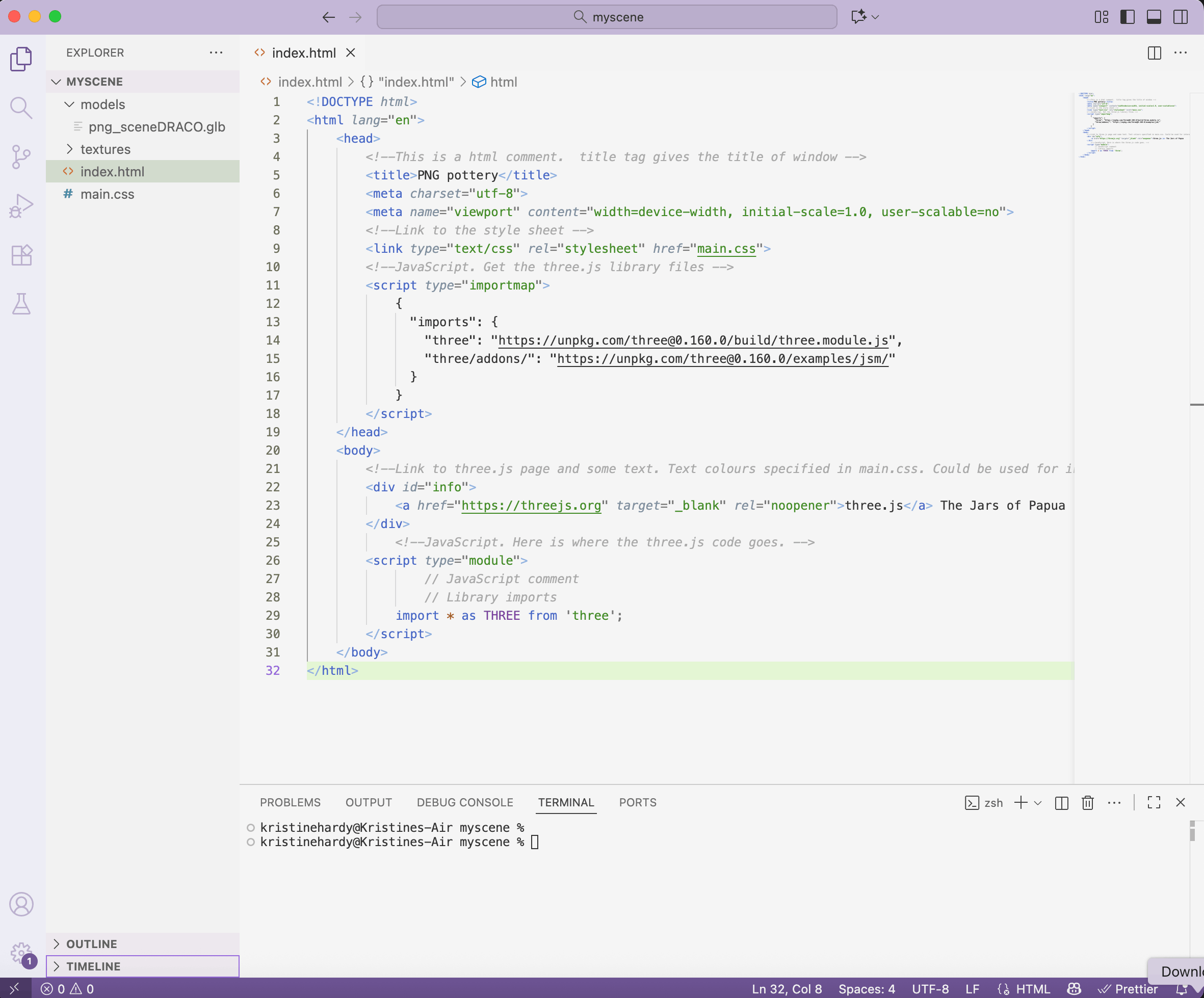
Figure 11. The directory structure can be seen in the left-hand panel of the VSC editor. The index.html file contents are shown in the main panel. A VSC terminal is open and shown in the bottom panel.
Now you will use the terminal to run the webpage you have just created. In VSC, select Terminal > New Terminal. Make sure that the command line of your terminal/shell indicates that you are in the myscene folder (for example, it may end with myscene %). You can check which folder you are currently in by typing:
pwd
which stands for ‘print working directory’.
In the terminal, type:
npx serve
This starts a local server, which allows your browser to load your webpage correctly. Some modern JavaScript features only work when files are loaded through a server. The terminal will display a local web address (usually something like http://localhost:3000). Open a web browser and go to that address. If everything is working, you should see a black page with the text ‘three.js The Jars of Papua’ (Figure 12).

Figure 12. Webpage with black background and small title (three.js The Jars of Papua).
If you encounter problems when using Windows, you may need to run the following in the terminal:
Set-ExecutionPolicy -Scope CurrentUser -ExecutionPolicy RemoteSigned
You do not normally need to stop the server when you change the code. However, if needed (for example, if a mistake causes issues or you want to take a break), you can stop the server by pressing Ctrl + C in the terminal, and restart it by running npx serve again.
You may also need to refresh the page in your browser to apply any changes you make to the code.
Building a 3D Scene in Your Webpage
In the previous section, you set up the project by creating a webpage (index.html), loading the three.js library, and starting a local server (npx serve) so that you can view the webpage in your browser. In this section, you will start adding JavaScript code to that webpage in order to build a basic 3D scene. You will start by creating a container for the scene, and then you will add the other elements needed to display it in the browser.
1. Setting Up the Container
The first step is to create a container for the 3D scene (which defines where the 3D content will appear on the webpage) with container = document.createElement('div').
In the index.html file, after the following line of code:
import * as THREE from 'three';
add the following code:
// Variable declaration and setting
let container;

// Function calls
init(); // initialise scene

// Function definitions

// Initialise scene: sets up container; scene; camera; renderer; lights; models; controls
function init() {
 // make an HTML div element and add it to the HTML document
 container = document.createElement( 'div' );
 document.body.appendChild( container );
}
You will continue adding to this script in later steps to build the 3D scene.
The // Variable declaration and setting part of the script is where variables used in the scene are declared (using let). A variable is a named piece of information that your code can refer to later. At this stage, only container is declared, but more variables (such as scene, camera, renderer, lights, models, and controls) will be declared later.
The //Function calls part is where functions are run. Here, init() calls the init function, which means the code inside function init() { ... } (defined below in Function definitions) will run. Later you will also add an animate() function.
The // Function definitions section is where functions are defined. The init() function is where the scene will be gradually set up. In later steps, more code will be added to this function to create the scene, camera, renderer, lights, and load the models. Note that functions are defined within {}, so pay careful attention to curly brackets when copying and pasting code.
At this stage, the init() function only creates the container with container = document.createElement( 'div' );. This creates a new <div> HTML element. This <div> will act as a container for the 3D scene. In other words, it defines where the 3D content will be placed on the webpage. The next line, document.body.appendChild( container ); adds that container to the webpage.
At this stage, nothing will change in your browser yet.
2. Setting Up the Scene, Camera, and Renderer
Next, you will create the core components of the 3D scene:
- the scene itself (the 3D space) with
scene = new THREE.Scene() - the camera (which defines what the user sees and where they are looking from) with
camera = new THREE.PerspectiveCamera(…) - the renderer (which displays the 3D scene on screen) with
renderer = new THREE.WebGLRenderer(…)
First, update the variable declaration to include these new elements:
let container, camera, scene, renderer;
Then, inside the init() function, after:
document.body.appendChild( container );
add the following code:
// make scene and set background colour
scene = new THREE.Scene();
scene.background = new THREE.Color( 0xf7d382 ); // use the hex code of any colour you want.
// make camera and set its start position
camera = new THREE.PerspectiveCamera( 50, window.innerWidth / window.innerHeight, 0.1, 10 ); // arguments are: vertical field of view, aspect, near plane, far plane. Note that the aspect depends on the user's window size.
camera.position.set( 0, 1.6, 3 ); // arguments: x, y, z. Values are in metres. Approximates a person's eye level (designed for VR)

// make renderer and use the user's browser window values to set pixel ratio and size
renderer = new THREE.WebGLRenderer( { antialias: true } );
renderer.setPixelRatio( window.devicePixelRatio ); // Don't change this code.
renderer.setSize( window.innerWidth, window.innerHeight ); // Don't change this code.
container.appendChild( renderer.domElement );
This code creates the main components of the scene inside the init() function.
The scene represents the 3D space. Here, you set its background colour using a hexadecimal colour value (0xf7d382, a peach colour).
The renderer converts the 3D scene into a 2D image that is displayed in the browser. The conversion of a 3D scene into a 2D image (to be displayed on the screen at that millisecond) is called rendering. It is configured to match the size and resolution (pixel ratio) of the user’s browser window. The antialias: true option uses anti-aliasing to smooth the edges of objects and reduce jagged lines by averaging edge pixel colours.
The camera defines the point of view from which the scene is rendered. The position of the camera is important; sometimes you cannot see your models because the camera is looking away from them or they are outside its field of view. Here, you are using a perspective camera, which mimics how we see in the real world (objects further away appear smaller). The camera is defined using four parameters:
- the vertical field of view (how tall the view is)
- the aspect ratio (based on the browser window dimensions)
- the near plane (how close objects can be before they are no longer visible)
- the far plane (how far away objects can be before they are no longer visible)
The aspect ratio can be taken from the browser window’s dimensions, and you will later add a function so that it is updated if the browser window is resized. The units for three.js are metres, so this camera will not render anything on the screen that is nearer than 0.1 m or further than 10 m. When moving the camera is introduced later, you will see objects disappear if they get too close.
The camera and other positions are set using x, y, and z coordinates. As mentioned previously, x is left (-) and right (+), y is down (-) and up (+) and z is depth or far away from the viewer/‘into the screen’ (-) and near the viewer/‘coming out from the screen’ (+). Here, the camera is set at a height of 1.6m (y = 1.6), slightly above ground level. The z coordinate for the camera is set at 3 m, as if you are standing a short distance away from the scene.
3. Rendering the Scene
To display the scene, you need to continuously render it using an animation loop. This is done by using the animate() function, which repeatedly calls the render() function.
After the init() function call (in the Function calls section):
init(); // initialise scene
add the following line:
animate(); // updates scene by constant rendering
Next, define the animate() and render() functions outside the init() function definition, i.e. after the following line of code (and after the closing curly bracket } of init()):
container.appendChild( renderer.domElement );
}
add the following code:
// Constant loop of rendering.
function animate() {
 renderer.setAnimationLoop( render );
}
// Called in loop by animate(), draws the scene in 2D as viewed by the camera at the camera's current position.
function render() {
 renderer.render( scene, camera );
}
This creates a loop that continuously redraws the scene from the camera’s perspective.
Save the index.html file and reload the page in your browser. The background colour should now have changed (Figure 13).
Figure 13. Webpage with peach background.
4. Responding to Window Resizing
Next, you will add an ‘event listener’ to ensure that the scene updates correctly when the browser window is resized. Currently, the scene does not adjust if the window size changes.
Inside the init() function definition, i.e. after the following code (inside the curly bracket):
container.appendChild( renderer.domElement );
add the following code:
// add listeners. These check for user interaction with the window and mouse clicks, and call the given function.
// listen for the user's browser window resizing and call the onWindowResize function defined below.
window.addEventListener( 'resize', onWindowResize );
Next, define the onWindowResize() function. Add the following code outside the init() function (that is, after its closing }), for example after the render() function:
// Called in loop by animate(), draws the scene in 2D as viewed by the camera at the camera's current position.
function render() {
renderer.render( scene, camera );
}
add the following code:
// called when the window is resized. Gets new browser window values and updates camera and renderer settings. Don't experiment with this.
function onWindowResize() {
 camera.aspect = window.innerWidth / window.innerHeight;
 camera.updateProjectionMatrix();
 renderer.setSize( window.innerWidth, window.innerHeight );
}
This adds an event listener that responds to changes in the browser window size. An event listener waits for a specific event (such as resizing the window) and then runs a function in response. It takes two arguments: the first identifies the input event (for example, here, resize for resizing), and the second is the function that will be called when the event occurs (here onWindowResize).
The standard window resize function code gets the new browser dimensions from the global object window and updates the camera aspect and the dimensions of the picture the renderer is drawing. Note that, as window is a global object, it is better not to call any of your variables window.
Three.js uses event listeners to detect and respond to user interactions. In this piece of code, the event listener is only set up for window resizing (resize); however, it can also be used to respond to other kinds of inputs such as mouse movement (mousemove), mouse clicks (click), keys being pressed on the keyboard (keyup and keydown), and drags (dragstart and dragend). You will use some of these in Part 2 to enable individual jars to be selected or moved around.
If you save the file and reload the browser, resizing the browser window should now work correctly.
5. Setting up Lighting
Now, you will add lights to the scene.
There are several different types of lights available in three.js. Here, you will add:
- a hemisphere light (which simulates light coming from above and below)
- a directional light (which acts like a light shining from a specific direction, such as sunlight)
The hemisphere light uses two colours (for sky and ground) and an intensity (from 0 to 1), while the directional light uses one colour and a position. Use the values provided below first. If everything is working, you can experiment with different values later.
Lights can be added in two ways: you can add lights directly when they are created, as you will do below with the hemisphere light, or you can first declare them (assign them to a variable), modify their parameters, and then add them to the scene, as you will do with the directional light.
Inside the init() function definition, after the following code:
camera.position.set( 0, 1.6, 3 ); //x, y, z
add the following code:
// add a hemisphere light and a directional light
scene.add( new THREE.HemisphereLight( 0xffffbb, 0x080820, .5) ); // arguments: sky colour, ground colour, intensity
const light = new THREE.DirectionalLight( 0xffffff ); // argument: colour
light.position.set( 1, 6, 2 ); // x, y, z
scene.add( light );
These lights make the objects in the scene visible and give them a sense of depth and shape.
6. Loading the Model
Next, you will load the 3D model into the scene.
Three.js can load different types of 3D files using loaders. Here, you will use two model loaders: a GLTFLoader to load .glb (glTF) model files, and a DRACOLoader to decode models that have been compressed using DRACO. Because the model used in this lesson was compressed using DRACO, both loaders are required.
First, you will import the loaders. After the following line of code:
import * as THREE from 'three';
add the following code:
import { GLTFLoader } from 'three/addons/loaders/GLTFLoader.js';
import { DRACOLoader } from 'three/addons/loaders/DRACOLoader.js'; // needed if the glTF file uses DRACO compression
Next, declare variables and set up the loaders.
After this line of code:
let container, camera, scene, renderer;
add the following code:
let themodel;
let desk = 0.8; // the height of the model (metres), corresponding to desk height in virtual reality

// Loader setup
// Different model formats use different loaders
const loader = new GLTFLoader();
const dracoLoader = new DRACOLoader();
dracoLoader.setDecoderPath( 'https://unpkg.com/three@0.160.0/examples/jsm/libs/draco/' );
loader.setDRACOLoader( dracoLoader );
The DRACOLoader retrieves decoding code from a web server and the version number in the path must match the version of three.js that you are using. If you are not using version 0.160.0, make sure to update the version number accordingly.
Load the model.
Inside the init() function, after this lie of code:
scene.add( light );
add the following code:
// load model
// function used by loader
function onLoadMap( gltf ) {
 themodel = gltf.scene.children[0]; // can also use just gltf.scene
 themodel.position.set( 0, desk, 0); // x, y, z
 themodel.scale.set( 1, 1, 1); // x, y, z
 scene.add( themodel);
}
// the loader is given the model file name (first argument), a function called after loading (second argument), a function called while loading (third argument), and a function called if an error occurs (fourth argument).
loader.load( 'models/png_sceneDRACO.glb', onLoadMap, undefined, function ( error ) {console.error( error );} );
The model is loaded using the loader.load() method, which can take up to four arguments:
- the file path, e.g.
models/png_sceneDRACO.glb(this can also be a URL) - a function to run after the model has loaded
- a function to run while the model is loading (optional)
- a function to run if an error occurs
The last three functions are called ‘callback’ functions (functions passed into another function as arguments). In this example, the onLoadMap function is called once the model has loaded; the loading progress function is left undefined (though it could be used to create a loading bar or similar); the error function prints any errors to the browser console.
Inside the onLoadMap function, the model is extracted from the loaded file using gltf.scene.children[0]. In some cases (such as with this model), you can use gltf.scene directly. However, glTF files can contain multiple objects arranged in a hierarchy (as you saw in the SCENE tab of the three.js editor), and accessing children[0] selects a specific object within that structure.
You can also position, scale, or rotate the model in the onLoadMap function. For example, here, the model is positioned slightly above the ground (y = desk). You can experiment with changing the x, y, or z values for position or scale and see the effects.
Importantly, model loading is not instantaneous. The rest of your code continues to run while the model is loading. By placing instructions (such as positioning or scaling the model) inside the onLoadMap function, you ensure that they are only applied after the model has finished loading.
Save the file and reload the page. You should now see the model, although you will not be able to move around it yet (Figure 14).
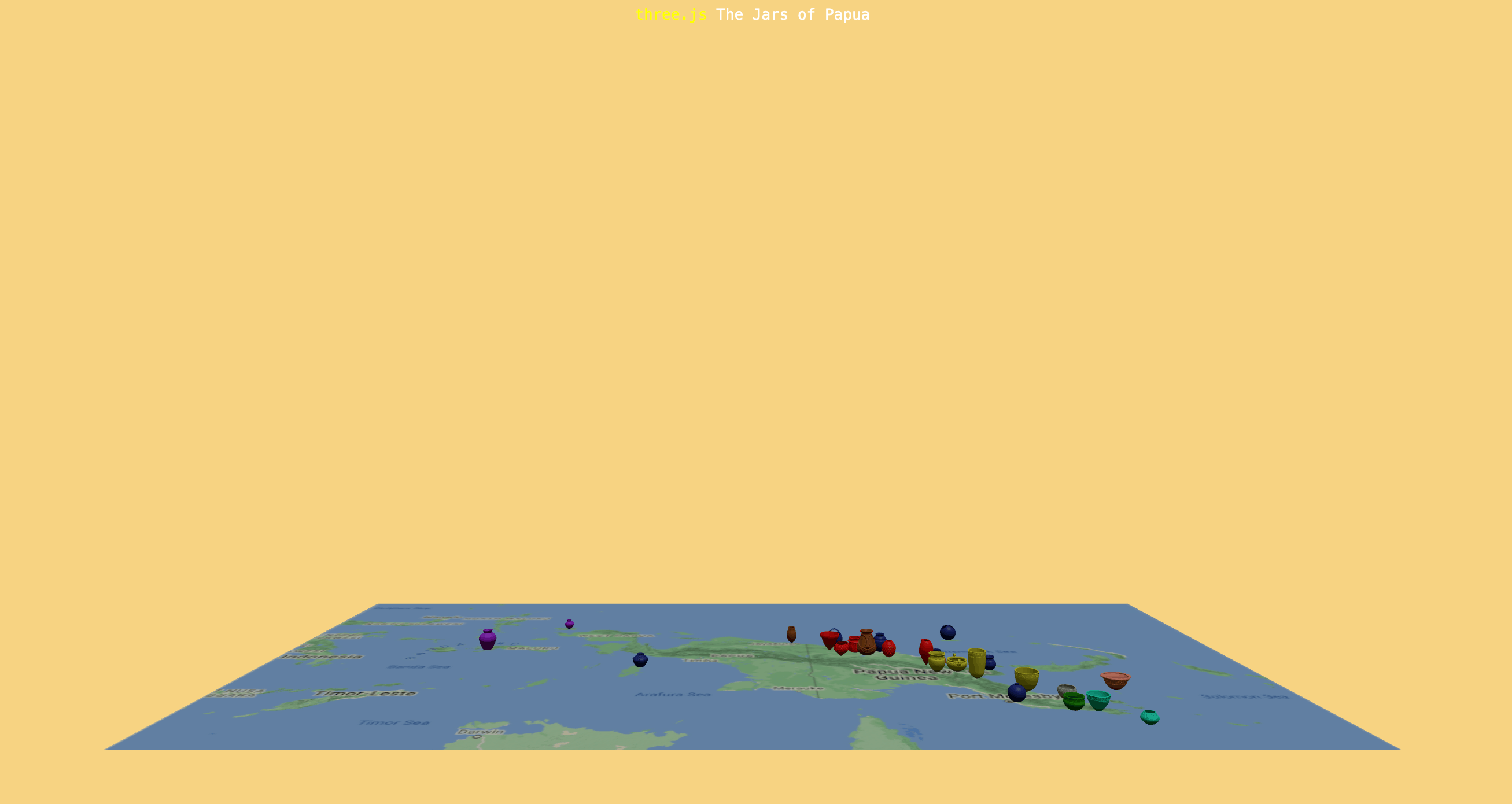
Figure 14. The model of jars on a map of Papua.
7. Adding Camera Controls to Move Around
Next, you will add camera controls so that you can move around the scene. Three.js provides different types of controls. Some controls, including orbit, map, fly, pointer lock and trackball, move the camera, while others, such as drag and transform, move objects in the scene.
Here you will use OrbitControls, which allow users to navigate the scene by:
- rotation (when the mouse is clicked and dragged)
- panning (when the mouse is clicked and dragged while pressing the Shift key, or using the right mouse button)
- zooming (with mouse scrolling).
First, you will import the controls.
After the following line of code:
import { DRACOLoader } from 'three/addons/loaders/DRACOLoader.js';
add the following code:
import { OrbitControls } from 'three/addons/controls/OrbitControls.js';
Next, add the controls to your variable declaration.
Find the following code:
let container, camera, scene, renderer;
and update it to:
let container, camera, scene, renderer, controls;
Next, you will create the controls and link them to the camera and renderer.
Inside the init() function, after this line of code:
container.appendChild( renderer.domElement );
add the following code:
// create orbit controls
controls = new OrbitControls( camera, renderer.domElement);
controls.target.set( 0, 1.6, 0 ); // sets the scene's rotational centre
controls.update(); // updates the control settings after creation
//controls.autoRotate = true; // set to true if the camera is to rotate automatically, BUT you must then call controls.update() in the render function.
The OrbitControls link the camera to user input (mouse and scroll), allowing you to move around the scene. The target.set() method defines the point the camera rotates around.
Save the file and reload the page. You should now be able to move around the scene and zoom in and out. Note that it is the camera that is moving, not the model itself.
If you want the camera to rotate automatically, you can uncomment controls.autoRotate = true;. This rotates the camera around the scene without user input. If you do this, you must also update the render() function.
Find the following code:
function render() {
 renderer.render( scene, camera );
}
and change it to:
function render() {
 controls.update(); // use if controls.autoRotate = true
 renderer.render( scene, camera );
}
8. Sharing Your Website
Finally, you are currently viewing your webpage locally using a development server (Node.js). If you want to make your page publicly accessible, you can deploy it using services such as GitHub Pages or Vercel, which are free to use. These platforms allow you to host your website online so that others can access it.
You can follow the instructions provided by GitHub Pages or Vercel to deploy your site. There are GitHub starter tutorials, or, if you use software such as GitHub Desktop to manage your GitHub repositories, you can refer to this GitHub Desktop tutorial. You get one free GitHub page per GitHub account. For example, a repository such as my own at https://github.com/tosca-har/tosca-har.github.io results in a website at https://tosca-har.github.io/. The Programming Historian lesson Building Static Sites with Jekyll and GitHub pages provides more detailed guidance.
You can also explore the three.js manual if you are interested in making your site viewable in virtual reality (VR).
Conclusion
Part 1 of this two-part series introduced 3D models and their components: meshes, materials, and textures. It also discussed the motivations, advantages, and ethical considerations of creating 3D models for cultural heritage. There are a growing number of both realistic and symbolic cultural heritage models, and making these models accessible via websites can be a valuable way of communicating archaeological and historical research. As with any communication of research on cultures not your own, especially those that have been subject to colonisation, it is necessary to consider the rights of the represented communities and to be open to their feedback.
In this lesson, you also used three.js to create a website with a model featuring some of the different ceramic vessels of Papua New Guinea. Interacting with the model gives a sense of the diversity of decoration styles and forms used by different communities across the region. You may have noticed similarities between some of the vessels and considered whether these indicate shared histories or knowledge exchanges between communities. This kind of additional information can be incorporated through annotations. You can annotate models using platforms such as SketchFab, which allow you to do this more quickly and easily. By contrast, using JavaScript libraries, such as three.js, gives you more flexibility and options for your website.
This will be covered in Part 2 of the lesson series. You will continue working with three.js and the Papua New Guinea ceramics model, but use a different approach to loading the models. You will import the jar models individually, control their colours and allow users to select them and trigger the display of relevant information in a text panel. You will also learn how to turn the scene into an interactive game in which the jar models start in random positions and can be moved to the communities that created them. This further demonstrates how three.js can be used to create engaging and effective ways of communicating historical research and concepts through 3D models of material culture.
Endnotes
-
Cornelius Holtorf, From Stonehenge to Las Vegas: Archaeology as Popular Culture (Walnut Creek, CA: AltaMira Press, 2005). ↩
-
Ekaterina Dolbunova et al., “The Transmission of Pottery Technology among Prehistoric European Hunter-Gatherers,” Nature Human Behaviour 7 (2023): 171. ↩
-
Michael J. O’Brien et al., “Transmission, Phylogenetics and the Evolution of Cultural Diversity,” in Cultural Transmission and Archaeology: Issues and Case Studies (Washington, DC: Society for American Archaeology, 2008). ↩
-
Patricia May and Margaret Tuckson, The Traditional Pottery of Papua New Guinea (Adelaide: Crawford House Publishing, 2000). ↩
-
Anne-Marie Pétrequin and Pierre Pétrequin, Objets de Pouvoir en Nouvelle-Guinée: Approche Ethnoarchéologique d’un Système de Signes Sociaux: Catalogue de la Donation Anne-Marie et Pierre Pétrequin (Paris: Réunion des Musées Nationaux, 2006). ↩
-
Dylan Gaffney et al., “Earliest Pottery on New Guinea Mainland Reveals Austronesian Influences in Highland Environments 3000 Years Ago,” PLoS ONE 10, no. 9 (2015): e0134497. ↩
-
Native American Graves Protection and Repatriation Act, Pub. L. No. 101-601, 104 Stat. 3048 (1990), amended 2023, 88 Fed. Reg. 86452–86540. ↩
-
Pınar Oruç, “3D Digitisation of Cultural Heritage: Copyright Implications of the Methods, Purposes and Collaboration,” Journal of Intellectual Property, Information Technology and E-Commerce Law 11, no. 2 (2020): 149. ↩
-
Andrea D’Andrea et al., “Copyright and Legal Issues Surrounding 3D Data,” in 3D Data Creation to Curation: Community Standards for 3D Data Preservation, ed. Jennifer Moore, Adam Rountrey, and Hannah Scates Kettler (Chicago: Association of College and Research Libraries, 2022), 205–255. ↩
-
Hannah M. Marek, “Navigating Intellectual Property in the Landscape of Digital Cultural Heritage Sites,” International Journal of Cultural Property 29, no. 1 (2022): 1–21. ↩
-
Hafizur Rahaman, “Photogrammetry: What, How, and Where,” in Virtual Heritage: A Guide, ed. Erik M. Champion (London: Ubiquity Press, 2021), 25–37. ↩
-
Isabella Shaw and Mathieu Leclerc, eds., Unearthed: Art in Archaeology and Anthropology (Canberra, ACT, 2023). ↩
-
H. Maschner, “Cultural Heritage Spotlight: Global Digital Heritage,” Sketchfab Community Blog, July 2022, https://sketchfab.com/blogs/community/cultural-heritage-spotlight-global-digital-heritage/. ↩