
 https://doi.org/10.46430/phen0137
Contents
- Introduction
- Interactive Scenes for Cultural Heritage
- Setting Up
- Using Mock-ups to Plan a Scene or Game
- Using the three.js Basic Geometries: Adding the Spheres for a Colour Key
- Designing a Game
- Adding Additional Jars
- Conclusion and Next Steps
- Endnotes
Introduction
In Part 1 of this lesson, you used three.js to create a website featuring a camera and a scene with lights, camera navigation controls, and a model featuring multiple jars on a map of Papua New Guinea. In Part 2, the 3D model will be made more interactive with the ability to obtain further information on a jar by selecting it and the option of turning the website into a game. This will involve learning how to make and import the various model components separately.
The example model in Part 1 (seen here in SketchFab), featured a selection of the over 100 vessel types historically made in the New Guinea region. Digital scenes with models of cultural heritage can visually convey information, such as similarities and differences in pottery form across a geographical area. Annotating elements of the model using text (or media such as images), can increase the ability of digital models to convey information and ideas about the history and culture of a region or era.
The primary goal of this lesson is to show how to use three.js to create ‘The Jars of Papua’ webpage featuring a 3D scene with selectable components. In this lesson, you will build a simplified version of the Papua Jar model (featuring six jars) where each individual jar can be selected. Selecting a jar will display a panel containing information about the language of the maker community, how the jar was made, and what it was used for. In this lesson, you will also create a colour key showing how different pottery-making techniques are represented by different colours. In doing so, you will learn how properties such as colour can be changed directly in the code.
To build the scene, you will work with core elements such as lights, cameras, primitive shapes (such as spheres and planes), complex models (the jar forms), and user controls. The models will be enhanced with additional materials and image textures. Along the way, you will also be introduced to key concepts such as 3D co-ordinates, model groupings, scale, and visibility. As discussed in Part 1, there are other software tools available for creating such scenes. The advantage of using three.js (or other JavaScript libraries) and working with individual model components (such as the separate jar models) is that it gives you greater flexibility and control over how the scene behaves.
An additional (optional) goal of Part 2 is to turn ‘The Jars of Papua’ webpage into a game by making the models moveable. Adding game-like elements can encourage users to engage more closely with both the model and the accompanying information, especially when they need to use that information to complete a task. The interactive game ‘The Jars of Papua’ randomises the initial positions of the jars, and the user must match each vessel to its maker community by moving it to the correct geographical location. In the game, selecting a community site reveals an information panel about its pottery. Reading this information helps the user identify the correct jar and encourages closer engagement with the panel. The lesson will show how to set up a simple test in the code so that, each time a model is moved, the game checks whether it has been placed in the correct position for its provenance. A successful match will trigger a background colour change to indicate that the jar has been placed correctly.
Interactive Scenes for Cultural Heritage
The interactive element of ‘The Jars of Papua’ scene is the user’s ability to toggle between different information panels by clicking on a jar. The scene was designed to communicate the diversity of vessel forms, decorations, construction techniques, and uses of Papua New Guinean pottery. It is also a way to visualise how ceramic technological knowledge may have spread and changed through Papua (and the wider region).
Historically, societies in Papua consisted of smaller communities that are thought to have deliberately maintained distinct linguistic and material culture traditions in order to develop and preserve group identities1. Papua New Guinea is the most linguistically diverse country in the world, with over 800 languages. Part of this stems from people arriving on the New Guinea Island over 40,000 years ago1. There is no evidence that pottery was present in New Guinea until contact 3000-4000 years ago with Austronesian peoples originating from Taiwan. Austronesian populations continued expanding further and reached as far east as Hawai’i and Rapa Nui. The timing and nature of the interactions of the Austronesian and older (‘Papuan’/’Non-Austronesian’) peoples is of great interest. Some communities in Papua New Guinea, mainly those on islands and along the coast, speak ‘Austronesian’ languages and carry segments of the ‘Austronesian’ genetic signature2. The predominance of pottery making in coastal regions of Papua New Guinea reflects the adoption of this practice from ‘sea-people’.
Using JavaScript libraries allows you to determine how you want to make a scene interactive. For example, this scene could be redesigned so that a mouse click (or keyboard choice) could change the map to show the different linguistic regions, or to indicate the proposed Austronesian migration route. Alternatively, when a jar is selected, the map image could show where that community traded its jars. The Adzera-made jars were traded east into the highlands and west into New Britain. While this scene focuses on geographic differences, you could design a scene using a timeline to reflect changes in vessel form and decoration over time. You could also utilise the 3D space to have the vessels arranged on virtual shelves or in museum cases, or the map could be a 3D model showing the terrain.
In Part 1 you learnt how to import complex models. In this lesson you will learn how to: add simple 2D and 3D shapes (such as planes and spheres); change model properties (such as colour, size, and visibility); add image textures to planes; create object groups; let users select objects with raycasting; and trigger changes to the scene when an object is selected. While a simple interactive scene will be created here, these techniques could be applied to many other interactive scenes. For example, users could be given options to toggle the visibility, size, or colour of groups of vessels with different properties, such as potter gender or language.
The ability to alter the size of a selected vessel could also allow more jar models to be incorporated into the scene. The models could initially be small enough to fit together, then expand when selected for closer inspection. Designing your own scenes with three.js gives you more flexibility in scene creation. In this lesson you will learn how to create a basic interactive scene, but three.js has the ability to create intricate galleries with professional appearances such as Artexpress, which displays Australian High School exam artwork.
Setting Up
In addition to the technical requirements in Part 1, for Part 2 of this lesson, you will need to download the /models folder containing the individual jar models, and the /textures folder with information about them.
Place the downloaded models and textures folders in the myscene folder, replacing any existing folders if necessary (Figures 1–2). Keep the index.html and main.css files that you created in Part 1. If you did not do Part 1, you need to download index_pt1_complete.html and main.css files we’ve prepared. Rename the index_pt1_complete.html file to index.html and place them in a folder called myscene. If you run into problems when editing code that you cannot fix, you can download and inspect the finished code index_pt2_scene.html or index_pt2_game.html that we’ve prepared.
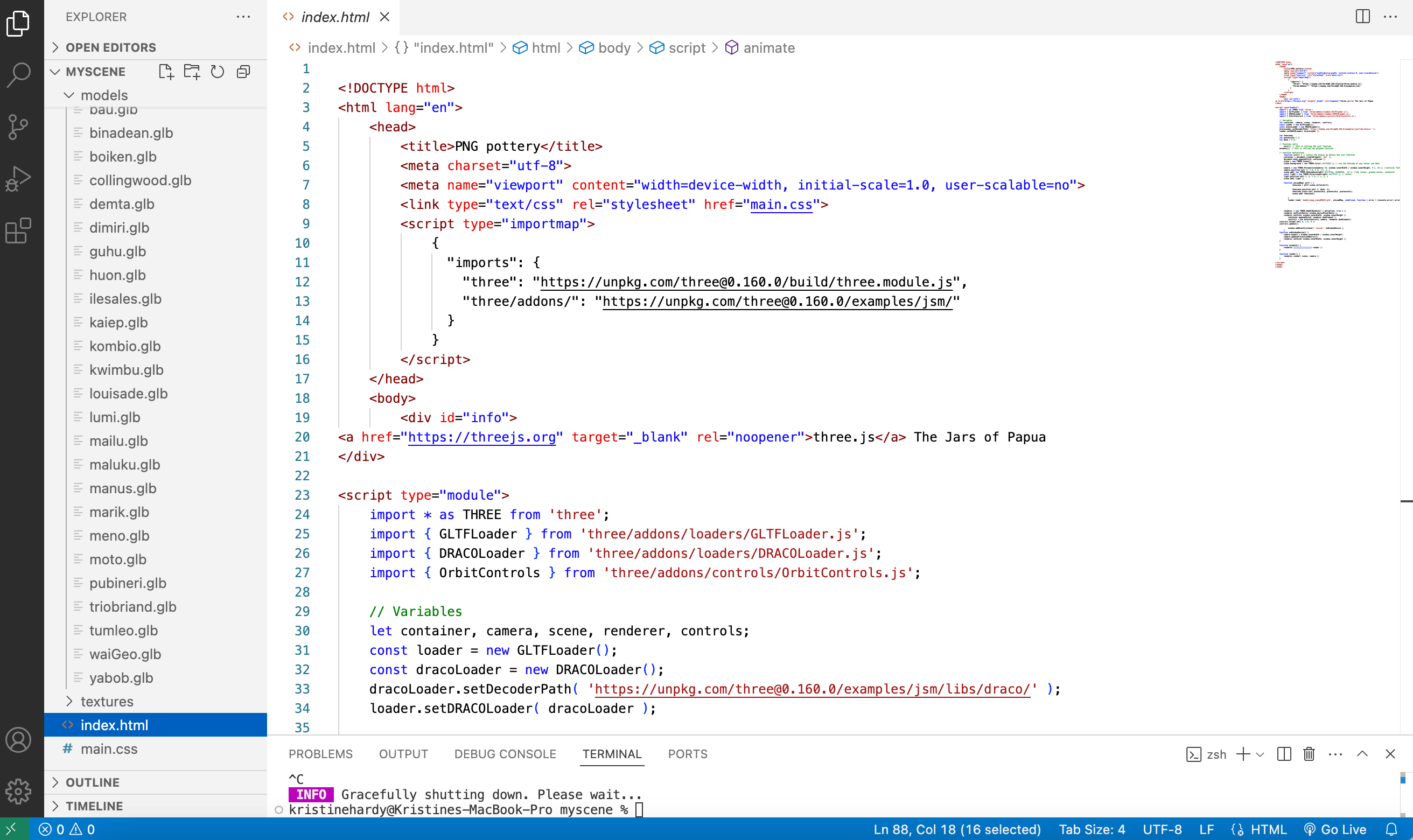
Figure 1. File structure for Part 2 as shown in VSC, with the models folder expanded. The index.html file is shown in the main panel.
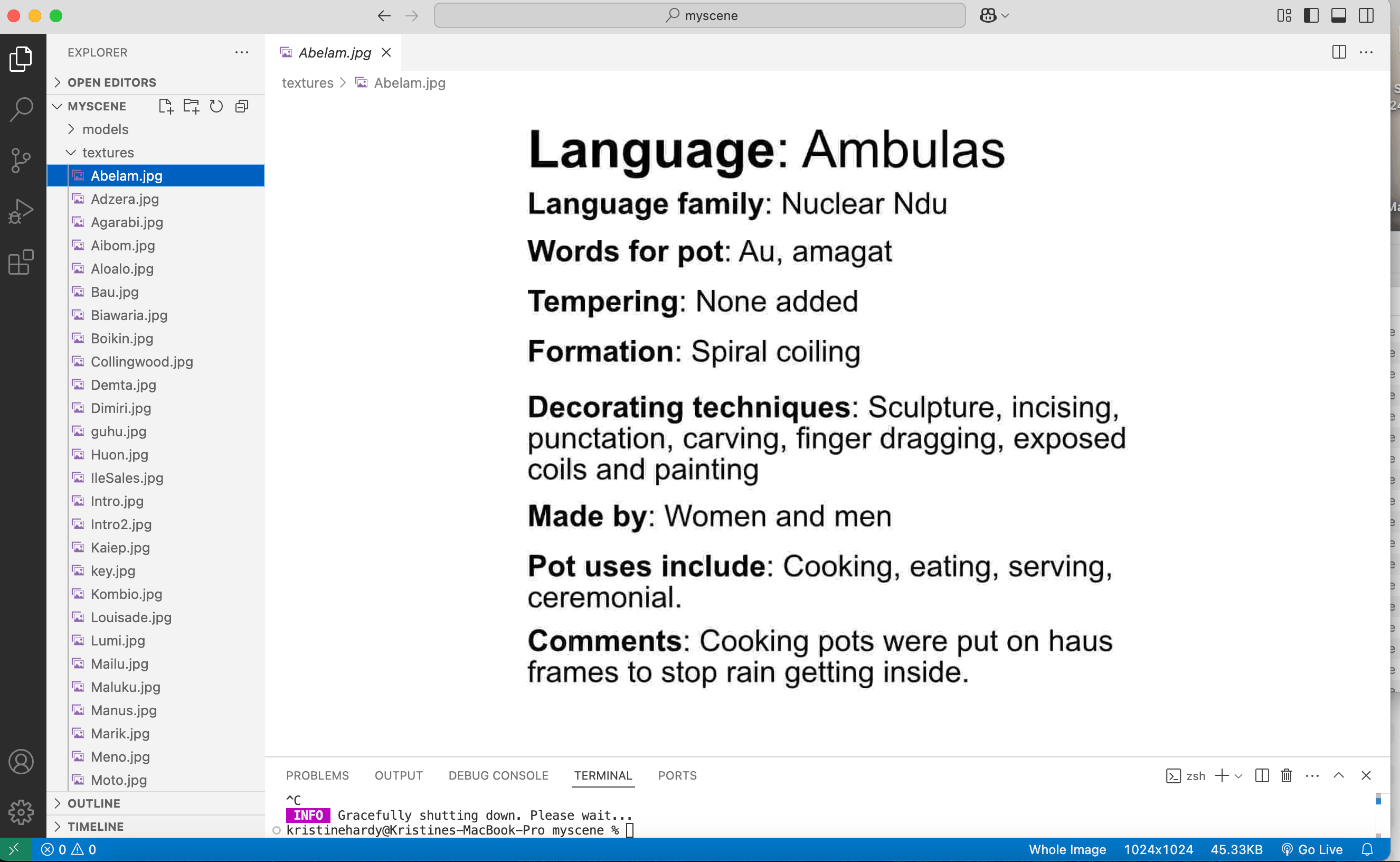
Figure 2. File structure for Part 2 as shown in VSC, with the textures folder expanded. The texture file Abelam.jpg is shown in the main panel.
If you made autoRotate true in Part 1, comment out that line (i.e. add // to the beginning of the line). In addition, comment out the controls.update in the render function (make sure not to touch the one in the init function).
Next, in the index.html file from Part 1, remove the code that loads the glTF model that was used in Part 1. In other words, remove the following lines of code:
// load model
// function used for loader
function onLoadMap( gltf ) {
  themodel = gltf.scene.children[0];
  themodel.position.set( 0, desk, 0); // x, y, z
  themodel.scale.set( 1, 1, 1); // x, y, z
  scene.add( themodel);
}
// the loader is given the model file name (first argument) which is passed to the function (second argument), function to do while loading (3rd argument), function called if error (4th argument).
loader.load( 'models/png_sceneDRACO.glb', onLoadMap, undefined, function ( error ) {console.error( error );} );
The next section explains how to plan and design an interactive scene before building it. You do not need to draw the plan for this scene or game yourself. However, viewing the scene mock-ups can help you understand the different components used in this lesson and provide an example of how you might plan your own scenes or games.
Using Mock-ups to Plan a Scene or Game
In Part 1 it was explained that scenes have a camera, light(s), and models, and that the positions of these in 3D space are specified in the code. If you do not remember the three (x, y and z) axes (the red, green and blue arrows) in the three.js editor, you may want to reopen it, or examine Figures 5-10 in Part 1. Part 1 utilised one model. With multiple models it is useful to draft out where components such as the camera, lights, and models will be placed. You can do this with pen and paper, and using grid or dotted paper can be especially useful. Additionally, you can mock-up views using whatever vector graphics software you are familiar with to create figures (Inkscape, Affinity Designer, Adobe Illustrator, Canva, or Powerpoint).
When designing your own interactive scenes or games, draw the three different 2D views: the “front view”, “side view”, and “bird’s-eye view”. Figure 3 shows mock-up views for the game version of the scene that will be created in the second part of this lesson. Note that the x, y, and z axes are clearly identified in the mock-ups, with their positive and negative directions indicated.
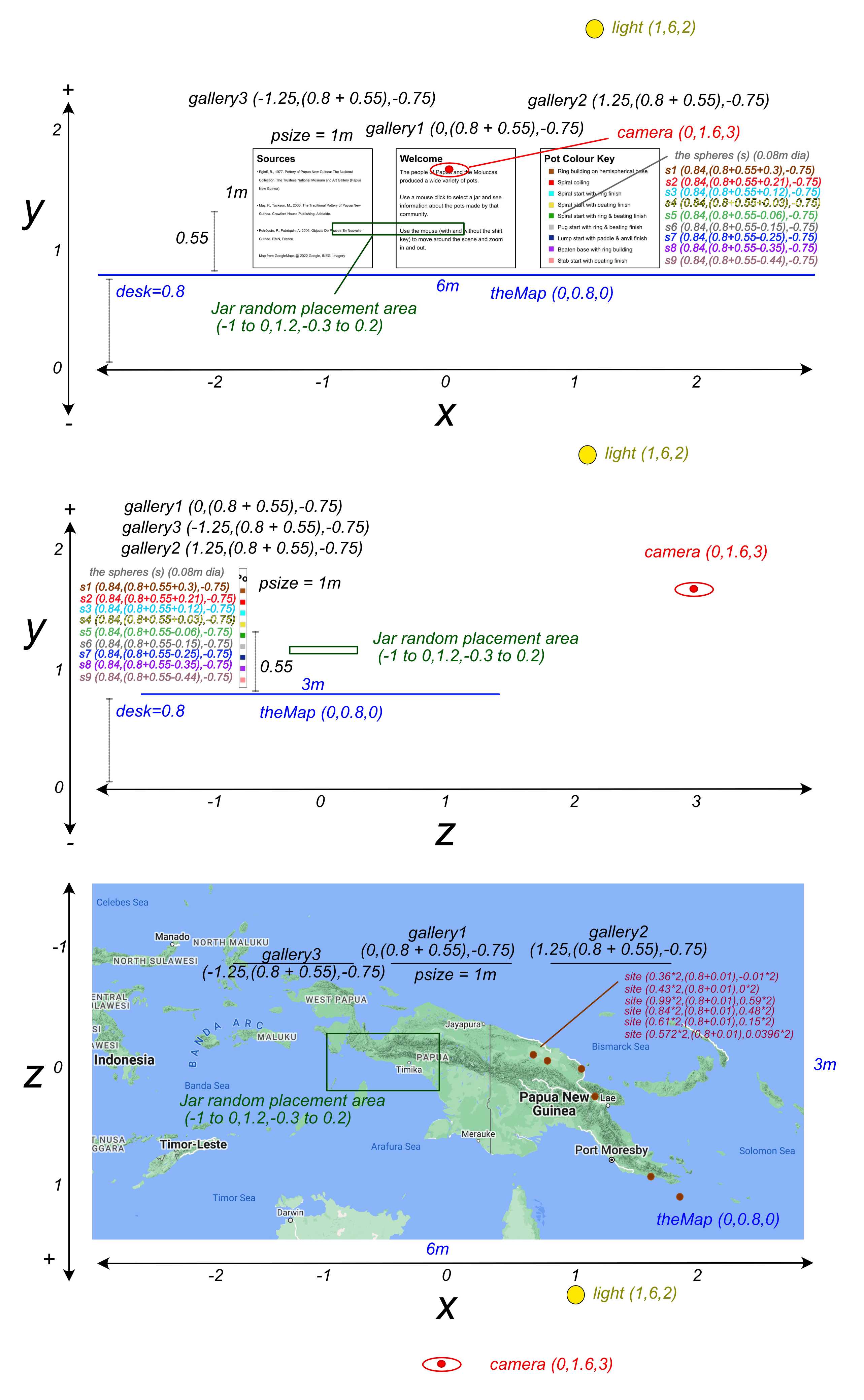
Figure 3. Affinity Designer versions of the hand-drawn sketches for planning the game. Mock-ups of all three views are done, with rough coordinates and spacing for the scene assets (here the camera, light, the map, information panels and a key panel featuring 9 spheres, the jar/site positions, and the area in which the jars will randomly start in the game). Coordinates are x, y, z. Note that the light is off the scale in the y axis.
Mock-ups are good for identifying what assets (models and textures) you will need. Part 1 used a model which featured a geographical map and 29 jars, but in this lesson the components of that model will be imported separately. For simplicity the lesson will only use six jar models but the other 23 can be added at the end if you wish. The scene will also need three panels that show instructions, references, and information about the jars. Nine spheres will be added to the panel on the right to form part of the colour key, showing how the jars were made by the potters. The middle gallery panel will display either instructions or information about the selected jar, so its content will change depending on which jar is selected. To achieve this, six additional panels will be created but will not initially be visible.
In the scene, the jars will be placed on the map at the locations in Papua New Guinea where they were made (this is indicated by the ‘sites’ in Figure 3). In the game the jars will start in an area above the map and the sites of construction will be indicated on the map by six tori (the geometric shapes commonly known as donuts). Tori (the plural of ‘torus’) can be harder for users to select than discs, but many Papua New Guinea communities use tori made of leaves to hold the vessels as they are being made. The Agarabi-speaking potter, Uneri Ankimpa, can be seen using a torus-shaped kawe’aron3.
In the mock-ups, the x, y and z co-ordinates are given for the different components and rough measurements of distances between objects and their proportions. Planning a scene will help you identify where the same value is used repeatedly, such as the x and z positions of the key spheres. Variables can be used for these values, so that it is easier to alter all instances together.
Planning out a scene can also help you identify where measurements depend on one another. An example of this is in the first mock-up of Figure 3, the height of the galleries is dependent on the height of the map, because they need to be above the map. To manage this, you can define variables to represent these relationships. For instance, you might create a variable called desk to represent the height of the map, and another variable called gheight for the height of the galleries, defined in relation to it (for example, gheight = desk + 0.55).
The map was placed at the chosen y value because the site was designed to be viewed in virtual reality (VR). A height of 0.8 m is comfortable for a standing person to look down at the map and place objects onto it. Three.js uses metres as its unit of measurement, although this is only important if you plan for your site to be viewed in VR.
Using the three.js Basic Geometries: Adding the Spheres for a Colour Key
If you do not have the local server running, save the index.html file and start the server in the terminal with the following command:
npx serve
Visiting the served website in your web browser (generally http://localhost:3000 but check the address given in the terminal) should show an empty scene with a peach background.
If you re-examine the SketchFab version of the model used in Part 1 you will notice that the jars are different colours. These colours indicate what techniques were used to make the jar. For example kabe, the cooking vessels made by Agarabi speakers, are constructed with coiling then beating3, while bodi made by Bilibil speakers are started with a clay lump and finished by paddle and anvil4. In the SketchFab model the vessels using these two construction techniques are coloured yellow and dark blue, respectively.
To communicate these techniques to the website user, a key featuring a plane and coloured spheres will be constructed. The plane will have an image texture listing the construction techniques, with coloured circles indicating the corresponding model colours. Coloured spheres will be placed over these circles, allowing the colours of the jars to be easily modified without the need to create a new image texture. Adding the spheres also provides an introduction to the use of basic geometries in three.js.
Meshes have geometries and three.js has several basic 2D geometry types, including plane, circle, ring, shape, and more 3D geometry types that include spheres, boxes, tori (donuts), cylinders, and tetrahedrons (Figure 4). The parameters for these generally include lengths (in metres) and numbers of segments (for height, width, etc.), but they can also be given parameters to create partial shapes. There are also some more complicated geometries, including lathes, that will not be used here. These are created from a series of user-provided 2D points that are rotated around the y axis to form a 3D shape.
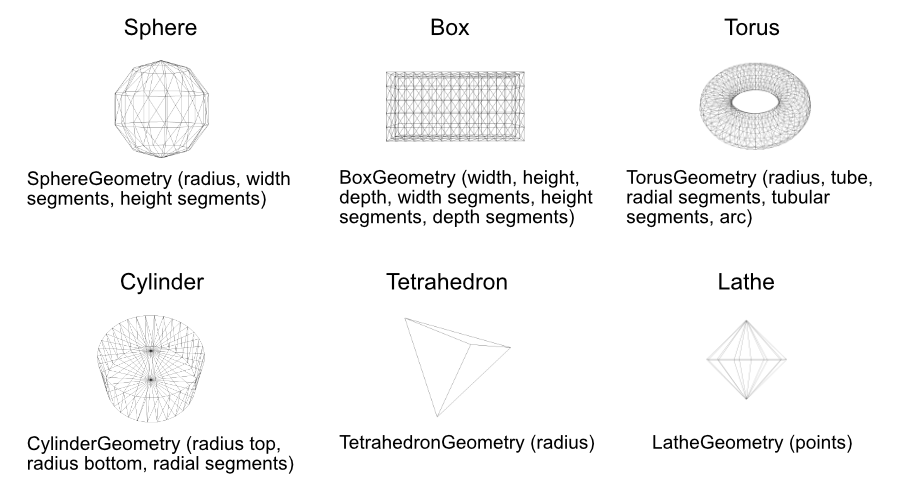
Figure 4. The 3D geometries that three.js can add include spheres, boxes, tori, cylinders, tetrahedrons, and lathes. Parameters for the geometries often include length and segment number measurements. Lathe geometries are generated from a series of points (that are then rotated) and the most simple lathe is shown.
This scene will use a plane and nine spheres arranged in a vertical line to create a vessel colour key showing how the jars were made.
The colours are set in a parameters list (more correctly called an ‘array’ in JavaScript). This means the same colour values are used for both the key and the jars. By storing the colours in one place, you can easily change them by updating the corresponding hex code in the array, and both the key and the jars will update automatically. Start with the proposed values and alter them later if you wish.
For each sphere the position in x, y, z order needs to be set. The variables sphereposx and sphereposz will be used for the x and z positions, and the y position will be varied so the spheres end up in a vertical line. The variables for the panel vertical placement (relative to the panel centre), and the sphere x and z positions will be declared.
let or const can be used to declare variables, the difference is that variables declared with const can not be changed later in the code, and must have a value when declared. Many of these variables could be declared within the init function, but having them all together at the start of the code makes them easier to find and change.
To declare the variables, after the following line of code:
let desk = 0.8;
Add the following code:
let gheight = desk + 0.55; //panel height
let sphereposx = 0.84 // key sphere x position
let sphereposz = -0.75 // key sphere z position

// colours for the key spheres and the jars
const parameters = {
  materialColor: '#9c5315', // brown
  coilColor: '#ff0000', // red
  ringTopColor: '#19ffE7', // light blue
  coilBeatenColor: '#e8e337', // yellow
  nabColor: '#209F00',  // green
  wangelaColor: '#BEBEBE',  // light grey
  paddleColor: '#1e2f97', // dark blue
  paddleAddColor: '#a61ef4', // purple
  amphColor: '#fc9483' // pink
}
Next the nine sphere meshes will be created. To create a sphere mesh from a basic three.js geometry an instance of a sphere ‘geometry’ must first be created. This geometry is given values (called arguments) that specify the radius size (use 0.04 m) and the number of width and height segments (use 15 and 5 respectively). You can see how the geometries have segments in Figure 4 and if the number of width or height segments is increased, the spheres get rounder.
Geometries can be reused, so an instance of the SphereGeometry will be created, called sphere and used to create nine different sphere meshes. Each sphere mesh gets assigned a material with a colour. This code uses standard material. There are alternatives, but it is important to note that some material types are more dependent on lights than others.
In summary, the following code will:
- create the sphere geometry, specifying its radius and number of width and height segments
- for each of the 9 spheres, make a mesh from the created geometry and a standard material (with a colour from the parameter list)
- add all the spheres to the scene
Within the init function definition after the following code:
scene.add( light );
Add the following code:
// add models

// add key for jar colours using spheres and a plane
//spheres for key
const sphere = new THREE.SphereGeometry( 0.04, 15, 5); //radius in metres, width segments, height segments. Will be reused.
const sphere1 = new THREE.Mesh( sphere,  new THREE.MeshStandardMaterial( {color: parameters.materialColor }));
sphere1.position.set( sphereposx, gheight + 0.30, sphereposz);
const sphere2 = new THREE.Mesh( sphere,  new THREE.MeshStandardMaterial( {color: parameters.coilColor }));
sphere2.position.set( sphereposx, gheight + 0.21, sphereposz);
const sphere3 = new THREE.Mesh( sphere,  new THREE.MeshStandardMaterial( {color: parameters.ringTopColor}));
sphere3.position.set( sphereposx, gheight + 0.12, sphereposz);
const sphere4 = new THREE.Mesh( sphere,  new THREE.MeshStandardMaterial( {color: parameters.coilBeatenColor}));
sphere4.position.set( sphereposx, gheight + 0.03, sphereposz);
const sphere5 = new THREE.Mesh( sphere,  new THREE.MeshStandardMaterial( {color: parameters.nabColor }));
sphere5.position.set( sphereposx, gheight - 0.06, sphereposz);
const sphere6 = new THREE.Mesh( sphere,  new THREE.MeshStandardMaterial( {color: parameters.wangelaColor }));
sphere6.position.set( sphereposx, gheight - 0.15, sphereposz);
const sphere7 = new THREE.Mesh( sphere,  new THREE.MeshStandardMaterial( {color: parameters.paddleColor}));
sphere7.position.set( sphereposx, gheight - 0.25, sphereposz);
const sphere8 = new THREE.Mesh( sphere,  new THREE.MeshStandardMaterial( {color: parameters.paddleAddColor}));
sphere8.position.set( sphereposx, gheight - 0.35, sphereposz);
const sphere9 = new THREE.Mesh( sphere,  new THREE.MeshStandardMaterial( {color: parameters.amphColor }));
sphere9.position.set( sphereposx, gheight - 0.44, sphereposz);
scene.add( sphere1, sphere2, sphere3, sphere4, sphere5, sphere6, sphere7, sphere8, sphere9 );
Save the index.html file and reload in the browser. A webpage with nine differently coloured spheres (Figure 5) should appear.
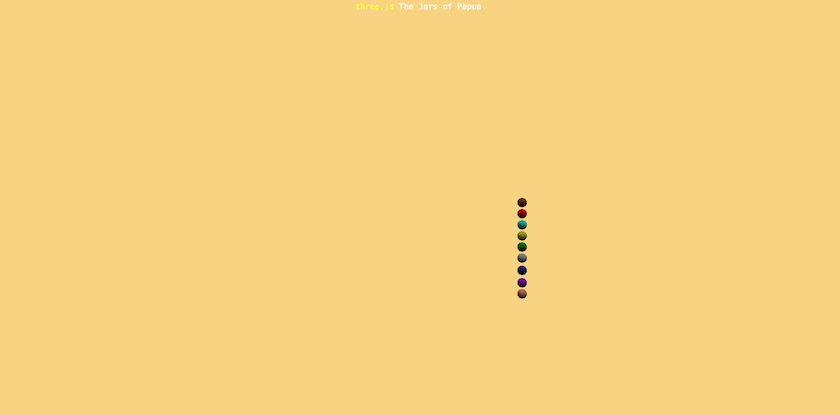
Figure 5. Webpage with nine differently coloured spheres.
Texturing Planes: Adding the Information Panels and Map
Now create the panel for the key (gallery2, on the right), along with the other two information panels that the user will see at the start: the references panel (gallery3, on the left) and the instructions panel (gallery, in the middle). The panels will be simple 2D planes with textures applied to them. The left and right panels will not change. However, the central instruction panel will disappear when the user clicks a jar and the information panel for that community will appear in its place. This can be done by toggling the visibility of different panels on and off, rather than changing the texture on a plane (which would also be implementable).
The information panels need to face the camera. The default planes do this. The planes will be given image ‘textures’, which contain text describing the individual artefacts. These textures are jpeg and png files and they all have pixel dimensions of 2n by 2n, e.g. 4096 × 2048. This helps with efficient rendering. The larger the image files, the longer they take to load, and very large images may not load at all. By default only one side (the ‘front’) of a panel is textured. Here, the dimensions of the panels match the dimensions of the image textures. When they do not match, different options can be used, including image tiling.
The use of images with text (created and exported from any graphics program such as Affinity Designer or PowerPoint) is one way to show text. There are alternatives.
Textures need to be loaded by a TextureLoader. After loading each texture, a set of lower-resolution images (a mipmap) gets generated. The renderer will automatically use one of the lower-resolution images when the texture appears small or far away. Using lower-resolution images for areas that cover fewer pixels is not only more efficient, but can also prevent image ‘shimmering’ (a flickering or noisy visual effect that can occur when fine details are rendered at too small a scale). Mipmap creation is one of the reasons for using images of 2n by 2n dimensions, but the creation of the down-sampled image sets takes processing time.
First declare the variables.
After the following code:
// Variable declaration and setting
Add the following code:
let psize = 1.0; // panel dimensions
let gallery, gallery2, gallery3;
Next a textureLoader will be made and the three textures loaded. For each of the three panels, make a mesh with one of the textures, and move the panel to the correct position.
Within the init function definition, after the following code:
// add models
Add the following lines:
// add introduction, key and reference panels by loading textures then adding planes .
// load textures and generate Mipmaps
const textureLoader = new THREE.TextureLoader();
const introTexture = textureLoader.load( 'textures/Intro.jpg' );
introTexture.generateMipmaps = true;
const refTexture = textureLoader.load( 'textures/sources.jpg' );
refTexture.generateMipmaps = true;
const keyTexture = textureLoader.load( 'textures/key.jpg' );
keyTexture.generateMipmaps = true;

// add introduction information panel
gallery = new THREE.Mesh( new THREE.PlaneGeometry(psize, psize), new THREE.MeshBasicMaterial({ map: introTexture }));
gallery.position.set( 0, gheight, sphereposz);
// add the panel for the key
const gallery2 = new THREE.Mesh(new THREE.PlaneGeometry(psize, psize), new THREE.MeshBasicMaterial({ map: keyTexture }));
gallery2.position.set( 1.25, gheight, sphereposz);
// add the panel for the references
const gallery3 = new THREE.Mesh(new THREE.PlaneGeometry(psize, psize), new THREE.MeshBasicMaterial({ map: refTexture }));
gallery3.position.set( -1.25, gheight, sphereposz);

scene.add( gallery, gallery2, gallery3);
Save the index.html file and reload the browser. There should be three panels, with the spheres on the right-hand panel. If the panels are black, the images are probably in the wrong directory. It should look like Figure 6, but without the map.
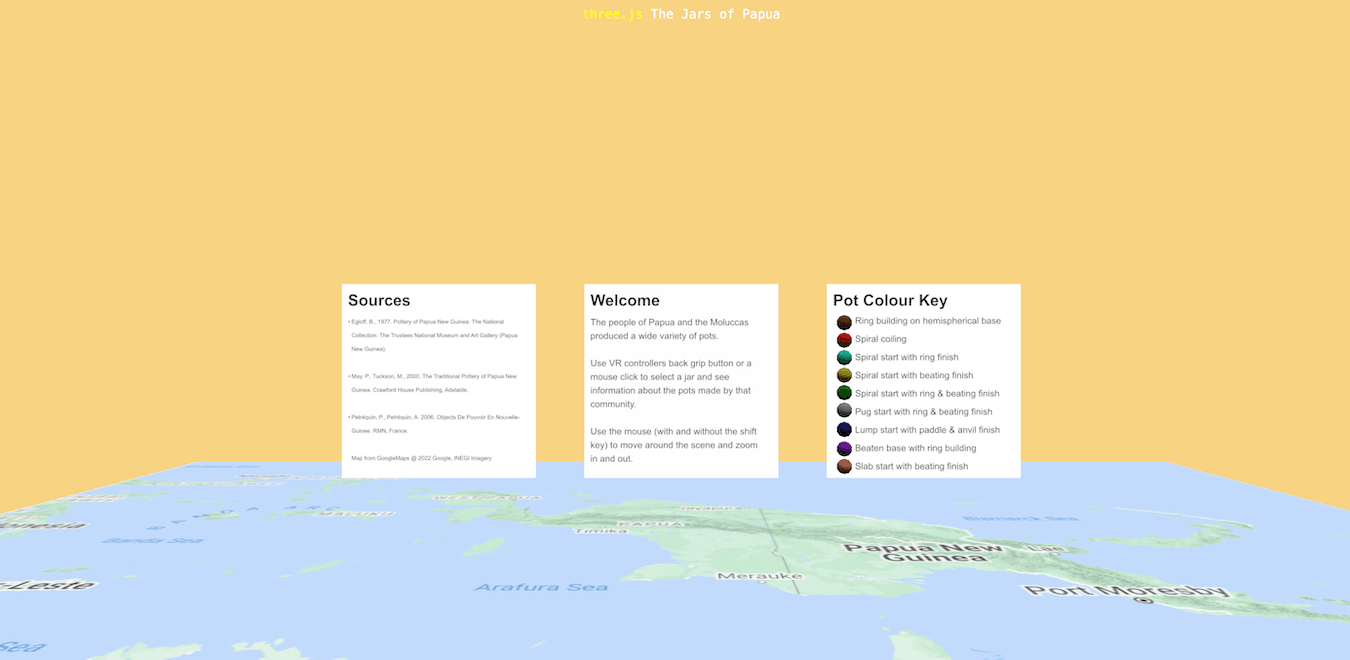
Figure 6. Webpage with three vertical information panels and a horizontal map.
Next, information panels for all the jars will be created. The scene is designed so the panels will be hidden (by making .visible = false) until the relevant jar is selected by the user. A variable, selectedPlane is used to track which panel is currently visible. At the start an instruction panel is displayed.
To help keep track of the different elements for each jar, a consistent naming convention will be used. Each jar will have:
- an information panel or gallery (called: ‘xG’)
- a model (called: ‘xM’)
- a loading function (called: ‘onLoadX’)
- a community site (called: ‘xSite’)
Here, ‘x’ refers to a short name for the community (for example, ‘yabob’ or ‘aibom’, the village or area where the jar the model was based on was made). Note that variable and function names cannot contain spaces, so these shortened names are used to keep the code readable and consistent.
First declare the variables.
After the following code:
// Variable declaration and setting
Add the following code:
let adzeraG, aibomG, mailuG, dimiriG, louisadeG, yabobG; // information panels for the different jars
let selectedPlane;	// which information panel will be visible
The code for the six jar information panels will be very similar, so a function can be used to avoid repeating it. The function receives the filename of the image texture, loads the texture, creates the mipmap, creates a plane mesh using that texture, sets the position of the mesh, and makes it invisible. The created function (called createGallery), will return a textured plane mesh and assign it to the named variable (i.e. adzeraG).
Within the init function definition, after the following code:
scene.add(gallery, gallery2, gallery3);
Add the following code:
selectedPlane = gallery; // start with the instructions.

// add the jar information panels then make them not visible
function createGallery(filename){
  const aTexture = textureLoader.load( filename );
  aTexture.generateMipmaps = true;
  const model = new THREE.Mesh( new THREE.PlaneGeometry( psize, psize ), new THREE.MeshBasicMaterial({ map: aTexture }));
  model.position.set( 0, gheight, sphereposz);
  model.visible = false;
  return model;
}

// 'call' the createGallery function for the information panels/galleries.
adzeraG = createGallery('textures/Adzera.jpg');
aibomG = createGallery('textures/Aibom.jpg');
mailuG = createGallery('textures/Mailu.jpg');
dimiriG = createGallery('textures/Dimiri.jpg');
louisadeG= createGallery('textures/Louisade.jpg');
yabobG = createGallery('textures/Yabob.jpg');
scene.add(adzeraG, aibomG, mailuG, dimiriG, louisadeG, yabobG);
Next, a plane for the map is needed. As planes are added ‘upright’ by default, this plane has to be rotated 90 degrees (- Math.PI/2) around the x axis. ‘Math’ is a JavaScript object, which has properties, including Math.PI (i.e. π, 3.141), and methods, including Math.random() (used later in the lesson). See the mdn web docs for more properties and methods.
Three.js uses radians for its rotational units. As π (3.141) radians is 180 degrees, 90 degrees is Math.PI/2. Rotation occurs in the counter-clockwise direction (when ‘looking’ towards the negative axis values), so for the way this scene is set up, the rotation of the plane for the geographical map must be -Math.PI/2 around the x axis to have the ‘front’ of the panel facing upwards.
The code below will add variables for the map and a ratio value that allows you to experiment with the map size.
After the following code:
// Variable declaration and setting
Add the following code:
let theMap;
let ratio = 2;
let piecescale = ratio;
Within the init function definition, after the following code:
scene.add( adzeraG, aibomG, mailuG, dimiriG, louisadeG, yabobG);
Add the following code:
// add the map of New Guinea
const mapGeometry = new THREE.PlaneGeometry( 3 * ratio, 1.5 * ratio );
const mapTexture = textureLoader.load('textures/png.png'); // from google maps
mapTexture.generateMipmaps = true;
theMap = new THREE.Mesh( mapGeometry, new THREE.MeshBasicMaterial({ map: mapTexture }));
theMap.rotation.x = - Math.PI / 2; // Equal to 90 degrees
theMap.position.set(0, desk, 0); // desk height
scene.add(theMap);
Save the index.html file and reload the web browser. The map should appear with the panels (Figure 6).
Adding Complex Models: the Jar Models
As shown in Part 1 of this lesson, the jar models are made of meshes (Figure 7).
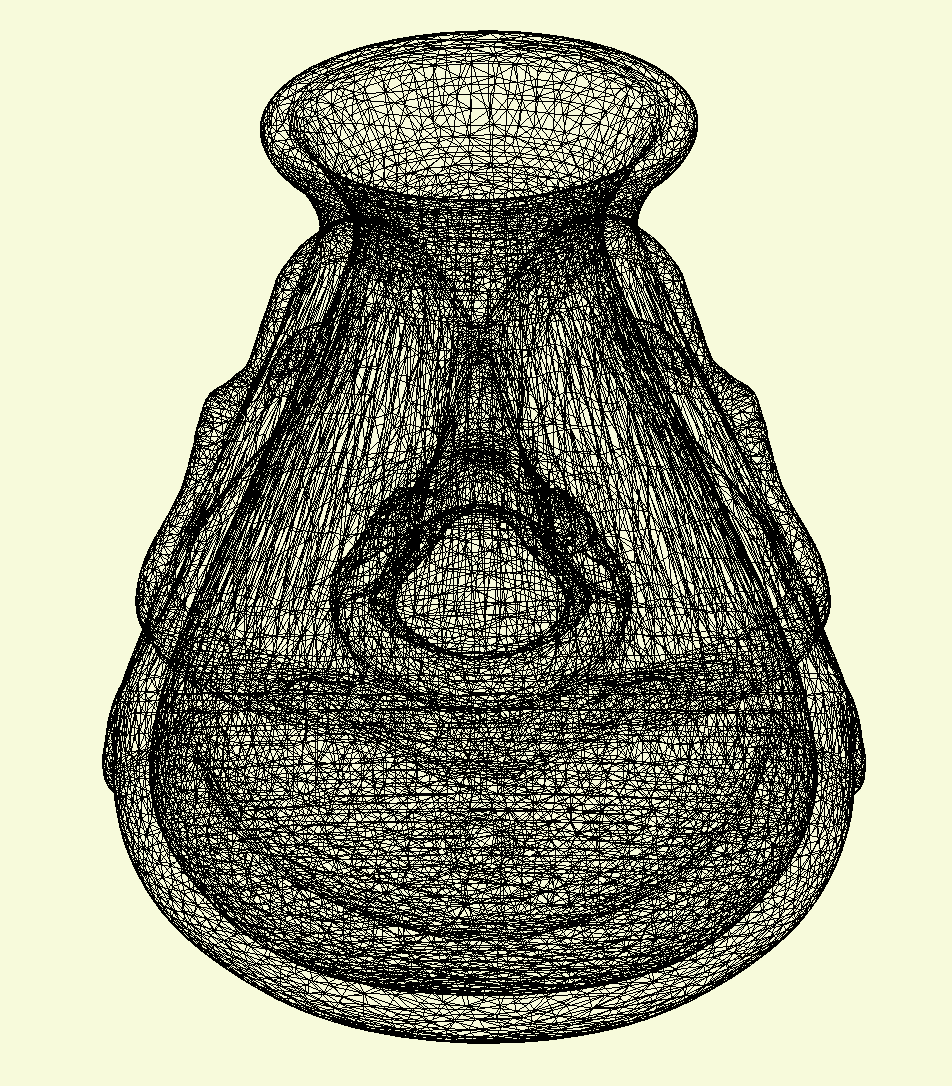
Figure 7. Mesh of the Aibom jar.
As with the spheres, the jars will be assigned a standard material with a colour that corresponds to the colour key (Figure 8).
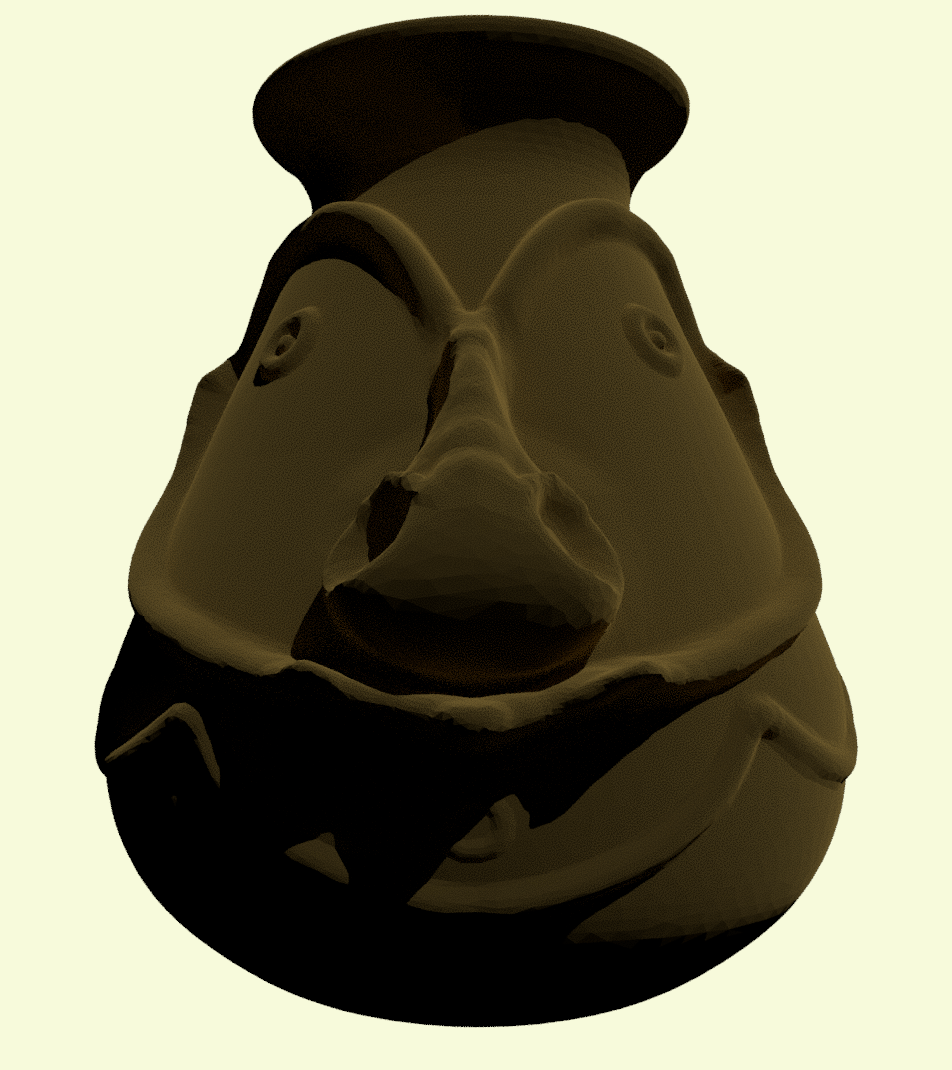
Figure 8. The Aibom jar with a solid brown colour.
Materials such as the standard material used here have emissive properties that can be enabled to make them appear to glow with colour. Later in the scene, a red emissive colour will be used to indicate when a jar is selected (Figure 9).
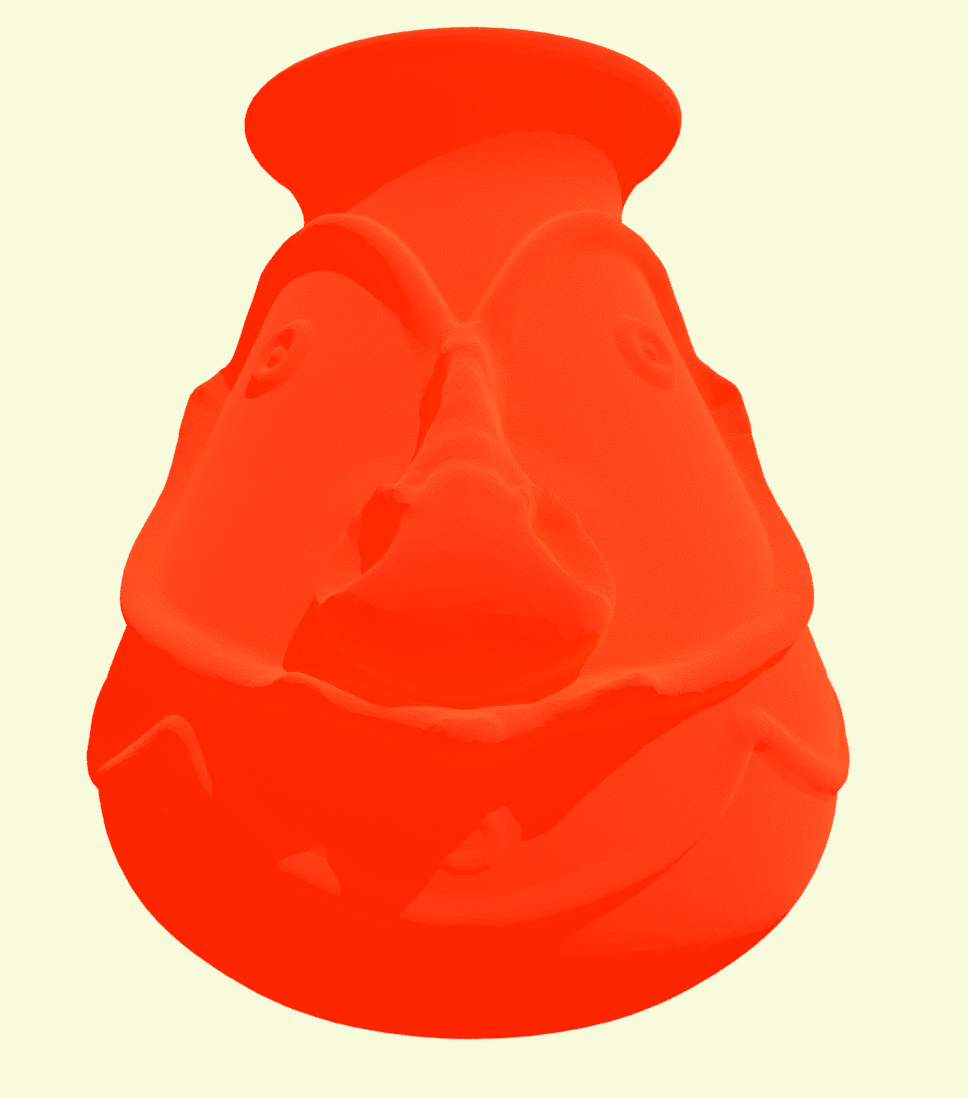
Figure 9. The Aibom jar with red emission.
The jars will be added to a group (called jars) and the group will then be added to the scene. This allows you to treat all jars as a single collection, for example later, when enabling selection for all objects belonging to the jars group.
Each jar will get a userData property that links it to the information panel associated with it, so that the panel can be displayed when the jar is selected. Three.js ‘userData’ properties do not have to be declared. They are default empty objects and more than one can be created. At this stage, aibomM.userData.planes will be created. Additional ones such as aibomM.userData.somethingelse and aibomM.userData.anotherthing (where ‘somethingelse’ and ‘anotherthing’ stand in for names of your choice) could also be added.
Model loading will be written in three different ways. All three approaches are functionally the same, but differ in how concise the code is.
To begin, one model will be added, aibomM, in a similar way to how you added the composite model in Part 1. A function is defined onLoadAibom that runs after the .glb file is loaded by the loader’s load method. As mentioned in Part 1, you need to put the positioning and scaling of the model in this function so that they only occur after the model has finished loading.
The load method has four arguments: the model filename, a function run after the model is loaded, a function run while the model is loading, and a function run if there is an error. As in Part 1, the function that runs while the model is loading will be left as undefined and an anonymous (unnamed) function will be used if an error occurs while the model is loading.
Replace the declaration of the model with declarations of the jars and their group.
Find the following code:
let themodel;
The line of code above should be changed to the following:
let jars;
let aibomSite, dimiriSite, louisadeSite, mailuSite, adzeraSite, yabobSite;
let adzeraM, aibomM, mailuM, louisadeM, dimiriM, yabobM;
Next an empty group is created and added to the scene and the onLoadAibom function that will run after loading and that will call the loader.load method, is created.
Within the init function definition, after the following code:
scene.add( sphere1, sphere2, sphere3, sphere4, sphere5, sphere6, sphere7, sphere8, sphere9 );
Add the following code:
// add jar models. Added in group so they can be selected.
jars = new THREE.Group();
scene.add( jars );

// jar/site positions
aibomSite = { x: 0.36, z : -0.01 }
mailuSite = { x: 0.84, z : 0.48 }
louisadeSite = { x: 0.99, z : 0.59 }
adzeraSite = { x: 0.61, z : 0.15 }
dimiriSite = { x: 0.43, z : 0 }
yabobSite = { x: 0.572, z :  0.0396 }

// loading function for Aibom jar model
function onLoadAibom( gltf ) {
  aibomM = gltf.scene.children[0];
  aibomM.material = new THREE.MeshStandardMaterial();
  aibomM.material.color.set(parameters.materialColor);
  aibomM.scale.set(piecescale, piecescale, piecescale);
  aibomM.position.set(aibomSite.x* ratio, desk + 0.01, aibomSite.z* ratio);
  aibomM.userData.planes = aibomG;
  jars.add(aibomM);
}
loader.load( 'models/aibom.glb', onLoadAibom, undefined, function ( error ) {console.error( error );} );
Save the index.html file and reload the web browser. You should see the model. Note that aibomM does not need to be added directly to the scene, since it is already part of the jars group, which has been added to the scene.
Note also that the introduction of the piecescale variable is not strictly necessary, as it is currently set to the same as the ratio, but it allows you to adjust the size of the jars independently from the map later if needed.
To avoid repetitive code, a function createModel() will be created, and the onLoadAibom() function will run this createModel() function when it loads the model. The createModel() function will take four arguments: the model filename (gltf), its position, the model colour, and the matching gallery (information panel) as these vary with the different models.
Using two different functions may seem confusing, and it is not essential to fully understand this at this stage. However, it may be useful when you later write your own code. The loader.load method does not expect the function called after loading (i.e. onLoadAibom) to return anything. In practice, this means you do not use a return statement inside the onLoadAibom function. So the loaded model has to be assigned to a pre-declared variable (i.e. aibomM). Passing additional parameters (such as colour or position) directly into callback functions like onLoadAibom is difficult, so you have to find another way to specify the colour, position, and gallery panel of the jar model. One solution is to use a second function to handle these values. One function (createModel) takes arguments (such as position, colour, and gallery panel) and returns a model; the other function (onLoadAibom) loads the model.
Find the following code:
// loading function for Aibom jar model
function onLoadAibom( gltf ) {
  ...
}
loader.load( 'models/aibom.glb', onLoadAibom, undefined, function ( error ) {console.error( error );} );
The lines of code above should be changed to the following:
//a function to make the model with the parameter specified
function createModel(gltf, site, col, gallery){
  const model = gltf.scene.children[0];
  model.material = new THREE.MeshStandardMaterial();
  model.material.color.set(col);
  model.scale.set(piecescale, piecescale, piecescale);
  model.position.set(site.x * ratio, desk + 0.01, site.z * ratio);
  model.userData.planes = gallery;
  return model;
}

//calls the createModel function but still in a separately defined function
function onLoadAibom( gltf ) {
  aibomM = createModel(gltf, aibomSite, parameters.materialColor, aibomG);
  jars.add(aibomM);
}
loader.load( 'models/aibom.glb', onLoadAibom, undefined, function ( error ) {console.error( error );} );
Save the index.html file, reload the browser and check the jar model still appears.
One jar has now been imported, and the code could include five additional functions (i.e. onLoadMailu, onLoadLouisade, etc.) to import the other five jars. However, the code can be condensed further by using ‘anonymous’ functions, meaning that the functions being called are not named.
Keep the createModel function but find the following code:
//calls the createModel function but still in a separately defined function
function onLoadAibom( gltf ) {
  ...
}
loader.load( 'models/aibom.glb', onLoadAibom, undefined, function ( error ) {console.error( error );} );
The lines of code above should be changed to the following:
// directly has the onLoad function as an anonymous function in the loader.load
// load a jar (filename, load function, function while loading, error function)
loader.load( 'models/aibom.glb', function( gltf ) {
  aibomM = createModel(gltf, aibomSite, parameters.materialColor, aibomG);
  jars.add(aibomM);
}, undefined, function ( error ) {console.error( error );} );

loader.load( 'models/mailu.glb', function( gltf) {
  mailuM = createModel(gltf, mailuSite, parameters.nabColor, mailuG);
  jars.add(mailuM);
}, undefined, function ( error ) { console.error( error );} );

loader.load( 'models/louisade.glb', function( gltf ) {
  louisadeM = createModel(gltf, louisadeSite, parameters.ringTopColor, louisadeG);
  jars.add(louisadeM);
}, undefined, function ( error ) {console.error( error );} );

loader.load( 'models/adzera.glb', function( gltf ) {
  adzeraM = createModel(gltf, adzeraSite, parameters.coilBeatenColor, adzeraG);
  jars.add(adzeraM);
}, undefined, function ( error ) {console.error( error );} );

loader.load( 'models/dimiri.glb', function( gltf ) {
  dimiriM = createModel(gltf, dimiriSite, parameters.coilColor, dimiriG);
  jars.add(dimiriM);
}, undefined, function ( error ) {console.error( error );} );

loader.load( 'models/yabob.glb', function( gltf ) {
  yabobM = createModel(gltf, yabobSite, parameters.paddleColor, yabobG);
  jars.add(yabobM);
}, undefined, function ( error ) {console.error( error );} );
Save the index.html file and reload the browser. You should see five models (Figure 10). You will have to move around to see the sixth.
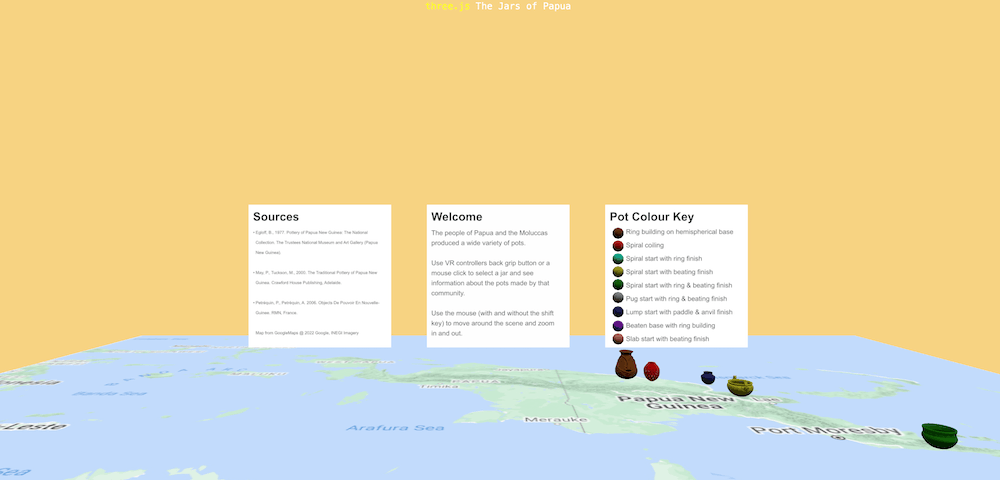
Figure 10. Webpage with six jars from Papua, but one is out of camera range.
It does not matter which of the three methods you use if you are writing your own code.
(Note that if let piecescale = ratio; is changed to let piecescale = ratio*2; the vessels become bigger, but some will overlap.)
Where to set the positions of the jars can be calculated by taking into account the map dimensions. This can be done on graph paper, although these positions were obtained via placement of the jars in Blender.
Using Raycasters: Adding Jar Selection
The interactive scene depends on users being able to select a jar to change the information panel. To enable this, an ‘event listener’ needs to be created. ‘Event listeners’ tell the scene what to do when the user interacts with the website, such as by resizing the window, clicking the mouse, or using the keyboard. As with the WindowResize event listener in Part 1, this listener gets the event (in this case click), and a function (known as an event handler) that will be defined. Input events pass event information to their handler, some of which is dependent on the type of event. The click event passes an object (commonly called event) that contains the mouse cursor’s coordinates relative to the viewport/window.
To determine which jar in 3D space is being targeted by the user’s mouse position in 2D space, three.js uses raycasting. Whenever the user clicks on the scene, the three.js raycaster ‘sends’ a ‘ray’ from the camera position to a pointer whose 2D position is calculated from the click event’s information. The raycaster has an intersectObjects method, which returns an array of the 3D objects that the cast ray has hit. This array is ordered by distance to the camera so the first in the array (index 0) will be the nearest object. The intersectObjects method can also be told what objects can be intersected and here, the children of the jars group will be specified. This is the primary reason you made the jars group.
Notice that three.js stores coordinates in a ‘vector’. A THREE.Vector2 is used for 2D coordinates (referred to as x and y) such as the pointer position, and a THREE.Vector3 is used for 3D coordinates (x, y and z).
Here you will declare the variables for the raycaster, the mouse pointer and the object selected at the time.
After the following code:
// Variable declaration and setting
Add the following code:
let raycasterM, pointer, selectedObj; // for mouse controls
A raycaster and pointer (an x, y vector) need to be created. Errors can occur if declared objects are empty, so make selectedObj a torus initially.
Within the init function definition, after the following code:
controls.update();
Add the following code:
// Mouse controls for jar selection
raycasterM = new THREE.Raycaster(); // ray to tell what is being pointed at
pointer = new THREE.Vector2(); // x, y co-ordinates for the ray to aim at, empty to start
selectedObj = new THREE.Mesh( new THREE.TorusGeometry( 0.015, 0.007, 20, 20  ), new THREE.MeshStandardMaterial({color: 0x006400})); // initialising the selected jar with something- here a torus, to prevent issues.
Then, tell the window to ‘listen’ for any clicks and send the click information to the onClick function that will be defined next.
Within the init function definition, after the following code:
window.addEventListener( 'resize', onWindowResize );
Add the following code:
window.addEventListener( 'click', onClick );
Next, tell the listener what to do when the user clicks in the window. To begin with, the newly selected jar will simply glow red (i.e. become red emissive). When the mouse is clicked, the scene needs to:
- turn the orbit controls off (use
event.preventDefault()) - get a pointer position from the click position (here the code from a three.js example is used, it calculates pointer.x and pointer.y from the
event.clientXandevent.clientYinformation and the window dimensions) - cast a ray from the camera to the pointer (use the
setFromCameramethod of the Raycaster) - see if any jars are there (use the
intersectObjectsmethod of the Raycaster and tell it to only look for objects in the jars group, and give any objects found to a group calledintersects). - see if it finds any jars (if the length of intersects is greater than 0)
- get the closest jar (create
foundand makes it the closest (first) intersected object, changeselectedObjtofound) - highlight it (set found’s
material.emissive.rto ‘on’ (i.e.=1))
After the resize listener, i.e. after the following code:
function onWindowResize() {
  ...
}
Add the following code:
// called on mouse click. Gets position of click, gets intersecting object, makes it emissive, gets the matching info plane
function onClick( event ) { // event is the input event information being passed from the event
  event.preventDefault(); // stops the orbiting
  // gets 2D click position
  pointer.x = event.clientX / window.innerWidth * 2 - 1 // this formula comes from the three.js examples
  pointer.y = - (event.clientY / window.innerHeight) * 2 + 1
  // detects what the user is trying to select in 3D space from viewpoint and 2D pointer
  raycasterM.setFromCamera( pointer, camera );
  const intersects = raycasterM.intersectObjects( jars.children); // an array, nearest to camera will be first
  // if there is something being clicked
  if(intersects.length > 0){
    const found = intersects[ 0 ].object; // get the selected object, index 0 is the first
    selectedObj = found;
    found.material.emissive.r = 1; // turn the selected object red emissive. 1 is on.
  }
}
You can save the index.html file and reload the browser, and see that clicking on the jars makes them red. However, the intended functionality is for the jars to go back to their original colour after a new jar is selected. Toggling material.emissive.r off and on to indicate selection means that the original colour of the jars does not have to be stored, as emissive can just be turned off.
Within the onClick function definition, after the following code:
if(intersects.length > 0){
Add the following code:
selectedObj.material.emissive.r = 0; // turn the current selected obj back to not emissive. 0 is off
Save and reload. There should now only be one highlighted jar at a time.
The onClick function also needs to:
- hide the current panel (set
.visibleto false for theselectedPlane) - change the
selectedPlaneto the new jars linked userData panel - make that panel visible (change
selectedPlaneand set its.visibleto true).
Within the onClick function definition, after the following code:
selectedObj.material.emissive.r = 0; // turn the current selected obj back to not emissive. 0 is off
Add the following code:
selectedPlane.visible = false; // hide the current information panel
Then, after the following code:
found.material.emissive.r = 1; // turn the selected object red emissive. 1 is on.
Add the following code:
selectedPlane = found.userData.planes; // get the new matching information panel for the selected object
selectedPlane.visible = true; // make the new panel visible
After reloading, you should be able to select a jar and see the middle information panel change to display information about that jar. You can try .emissive.g or .emissive.b to make the selected jar green or blue emissive, if you wish.
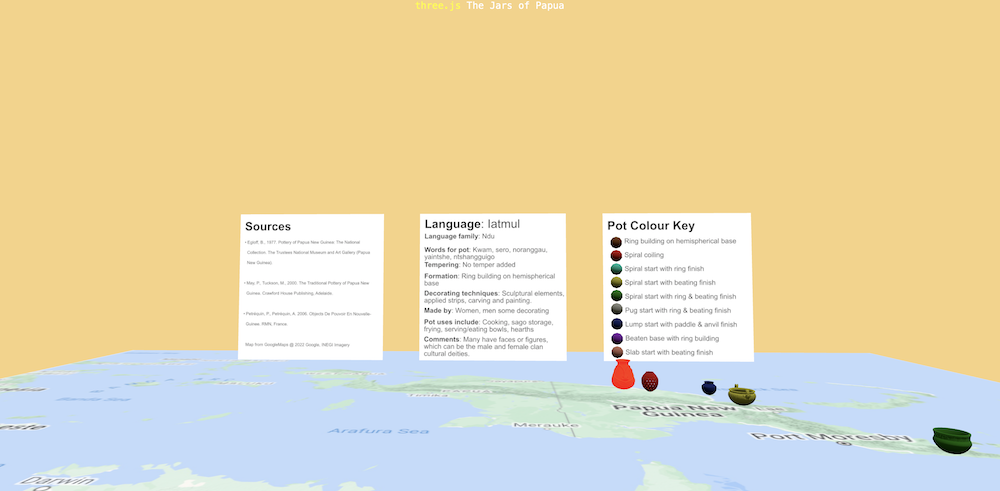
Figure 11. Webpage showing the Aibom jar selected with its red emission set to true, and the Aibom information panel.
The next sections are optional. In these sections, you can learn to turn the website into a puzzle game and to add additional jars.
Designing a Game
When designing a game or puzzle, consider whether it is based on memory or logic. The main aim of games featuring material culture is generally to help users appreciate variation in artefact properties, such as form and decoration, rather than to make them remember every detail of each object encountered during the game.
Often images of material culture are incorporated into the traditional memory game of finding matching images on overturned cards. See the 2D Ho’omaka Hou Research Initiative Fishhook Memory Game, which introduces users to the variety of forms and decoration in material culture (including fishhooks) they may not otherwise appreciate.
In contrast, jigsaw puzzles (which also commonly feature material culture) rely more on logic. 3D jigsaw puzzles can be made of material cultural artefacts and sites, but it can be quite difficult for users to manipulate pieces on a computer screen. 3D jigsaw puzzles are more usable in VR. One example is Artsalad by Mariotto F., an opensource VR 3D puzzle game written with three.js.
If ‘The Jars of Papua’ featured realistic jar models that users needed to place at the correct sites, it would be useful to provide a way for them to view the correct placements first. Alternatively, clues could encourage users to study the models more closely, reducing their reliance on memory.
For this lesson, you will rely on the models being coloured according to their method of construction (building technique) to help users match vessels to sites. This is explained in the site information panel, which also includes details about decoration styles that may help users make matches. While it would be possible to match the models to the information panels without using a map of New Guinea, including the map helps reinforce the connection between the vessels and the communities that made them. It also highlights the diversity of material culture across Papua New Guinea (and West Papua).
If you are planning to design a game, consider consulting guides such as Jesse Schell’s, which discuss aspects of game design including the roles of skill versus chance, rewards, punishments, and scoring5. Schell distinguishes ‘puzzles’ as “head” (thinking) games rather than “hand” (co-ordination and reaction) games. They outline 10 ‘puzzle principles’: making the aim of the puzzle clear; making it easy for the player to know where to start; providing an indication of progress; avoiding making the puzzle appear unsolvable; varying the difficulty; maximising the player’s choice over the order in which they complete different steps; including puzzles within puzzles; providing hints; providing the solution; and being careful with puzzles that rely on a trick or require the player to change how they interpret the problem.
To transform the scene into a puzzle, the information panel needs to be altered, as it is the user’s main source of information. The goal for the user is to start with the jars off the map, with the Papuan communities demarcated by selectable tokens. When the communities are selected by the user’s mouse click, the information panel will provide the information on the pots made by that community. Information on the technique used to make the pot can be used to work out which of the jars may be a match, as the jars are coloured according to the technique and a key is provided. The decoration technique may also serve as a guide. For instance, when the user selects the site of the Iatmul community, the information panel reveals that their jars are made using the ‘ring building technique on a hemispherical base’ and are decorated with ‘sculptural elements’. The key shows that models of jars made using this technique are coloured brown. Thus the user will look for a brown jar model with sculptural decorations. The user can move the jars with their mouse. If they place the matching jar on the community marker, then the jar becomes unmoveable and the background colour changes.
Adding Simple Models: Tori (Donuts)
In this game, users will receive clues for matching each jar to its community location by clicking on the community location. If presented with a map of Papua New Guinea and jars randomly positioned some distance above it, most users would not know where on the map to click to find the clues. Green tori (donut shapes) will therefore be used to mark the community locations and show the user where to start clicking. In the final step, the information panel will be changed to instruct the user to click on a torus.
The torus is a basic three.js geometry, and the diameter, central hole size, and segmentation can be specified (Figure 4). However, tori are generated at the wrong angle for this game and need to be rotated (around the x axis) by 90 degrees (i.e. -Math.PI /2). Each torus’s centre will be positioned slightly (1 cm) above the map (which is at ‘desk’ height) at y = desk + 0.01.
Because each torus is connected to a different information panel, they still need to be created separately and added to a tori group. The mouse click event listener has to be altered so that it targets the tori group instead of the jars group.
Each site could be added with such code as follows:
aibomSite = new THREE.Mesh( new THREE.TorusGeometry( 0.015, 0.007, 20, 20 ), new THREE.MeshStandardMaterial({color: 0x006400}));
aibomSite.position.set(0.36* ratio, desk + 0.01, -0.01* ratio);
aibomSite.scale.set( piecescale, piecescale, piecescale);
aibomSite.rotation.x = -Math.PI * 1/2;
aibomSite.userData.planes = aibomG;
But it is also possible to make a function that takes position (x and z) co-ordinates and the relevant gallery. The function is then called for each site.
In the index.html file find the following code:
let jars;
The line of code should be changed to the following:
let jars, tori;
Within the init function definition, find the following code:
aibomSite = { x: 0.36, z : -0.01 }
mailuSite = { x: 0.84, z : 0.48 }
louisadeSite = { x: 0.99, z : 0.59 }
adzeraSite = { x: 0.61, z : 0.15 }
dimiriSite = { x: 0.43, z : 0 }
yabobSite = { x: 0.572, z :  0.0396 }
The lines of code above should be changed to the following:
// Add sites as tori, in a group
tori = new THREE.Group();
scene.add( tori );

// a function to create the site marker with the location and matching information panel
function createSite(x, z, gallery){
  const model = new THREE.Mesh( new THREE.TorusGeometry( 0.015, 0.007, 20, 20 ), new THREE.MeshStandardMaterial({color: 0x006400}));
  model.position.set( x * ratio, desk + 0.01, z * ratio);
  model.scale.set( piecescale, piecescale, piecescale);
  model.rotation.x = -Math.PI * 1/2;
  model.userData.planes = gallery;
  return model;
}

aibomSite = createSite(0.36, -0.01, aibomG);
dimiriSite = createSite(0.43, 0, dimiriG);
louisadeSite = createSite(0.99, 0.59, louisadeG);
mailuSite = createSite(0.84, 0.48, mailuG);
adzeraSite = createSite(0.61, 0.15, adzeraG);
yabobSite = createSite(0.572, 0.0396, yabobG);
tori.add(aibomSite, mailuSite, dimiriSite, louisadeSite, adzeraSite, yabobSite);
Save the index.html file, reload the browser and check the tori appear on site reload. However, this change has broken the importation of the jar models so you will not see them.
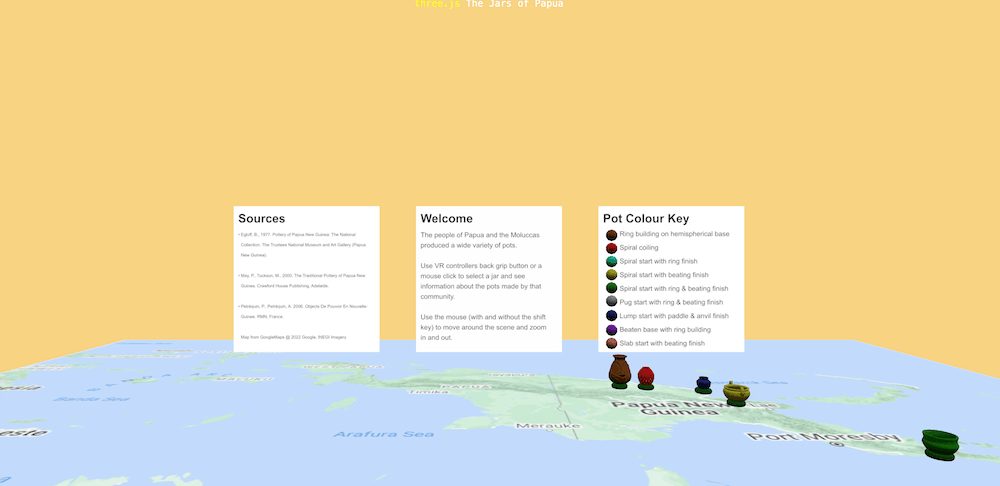
Figure 12. Webpage with the jars sitting on tori.
Start Jars at Random Positions
To make the jars start in a random position above the map the Math.random() method, which generates a number between 0 and 1, will be used.
You will change the position.set values to x = Math.random() - 1, y = 1.2, and z = Math.random() * 0.5 - 0.3.
This means that all jars will appear at the same height (y = 1.2) but in random positions within a defined area:
- along the x-axis, between -1 and 0 (slightly to the left of the scene)
- along the z-axis, within a range of 0.5m (from -0.3 to 0.2)
These values were chosen to make the jars easy to reach and the instructions easy to read in a VR setting.
If you review Figure 3, you can see where the jars should appear in relation to the camera and map. You can adjust the code to position them elsewhere if this better suits your purpose.
The correct matching site will be stored in a userData variable. (Before making this change, you may find it helpful to note where at least one of the jars should be placed or take a screenshot for reference.)
When creating the jars, assign them a random starting position instead of placing them at their true (final) location. The true site will still be stored in userData, so it can later be used to check whether the jar has been moved to the correct position.
Within the createModel function, find the following code:
model.position.set( site.x * ratio, desk + 0.01, site.z * ratio);
Replace it with:
model.position.set( Math.random() - 1, 1.2, Math.random() * 0.5 - 0.3 );
model.userData.site = site;
Save the index.html file and reload the browser. The jars should now appear above the map in random positions. Each time you reload the page, they will appear in different random locations.
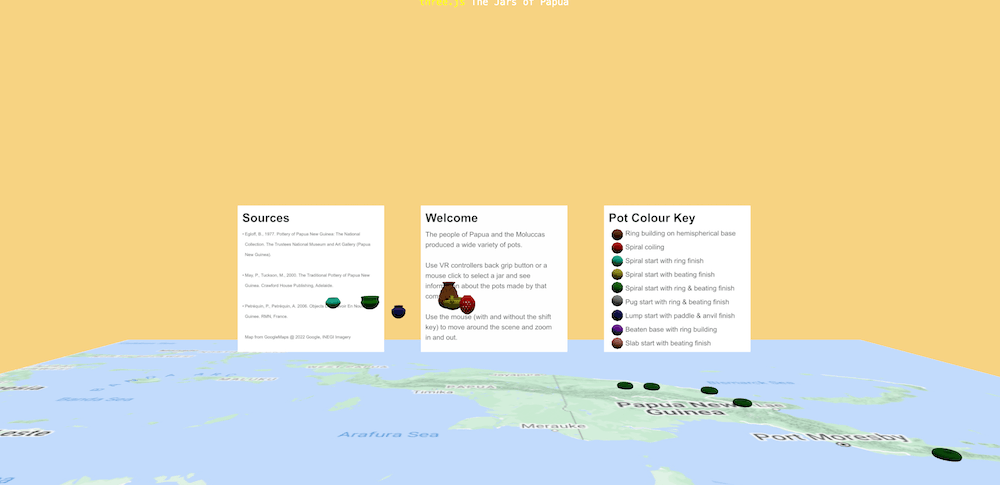
Figure 13. Webpage with the jars at random start positions above the map.
Raycasting: Changing What the Mouse Click Detects
For this game, linking the information panel to the selected jar is not very helpful, as most users will not be able to identify the correct location from the jar alone (unless they are familiar with Papua New Guinea languages). Other game designs might include clues that hint at a location, for example, ‘This jar was used to cook seafood’, allowing the user to match the jar to a coastal area. In that type of game, the information panel could still change when a jar is selected. In this game, however, the panel should change when a site is selected.
You will see that nothing happens when you click on the tori, as the raycaster is checking the jars for intersections and not the tori. So in the onClick(event) function, find the following code.
const intersects = raycasterM.intersectObjects( jars.children); // an array, nearest to camera will be first
The line of code should be changed to the following:
const intersects = raycasterM.intersectObjects( tori.children);
Once you have saved, check that clicking the tori now changes the information panel, rather than clicking the jars.
Drag Controls: Enabling Jar Movement
To be able to move the jars using the mouse, DragControls have to be imported and created. The first argument when creating the DragControls determines what they can drag.
After the following code:
import { OrbitControls } from 'three/addons/controls/OrbitControls.js';
Add the following code:
import { DragControls } from 'three/addons/controls/DragControls.js';
Find the following code:
let container, camera, scene, renderer, controls;
The line of code should be changed to the following:
let container, camera, scene, renderer, controls, dragControls;
Within the init function definition, after the following code:
pointer = new THREE.Vector2();
Add the following code:
// Mouse controls for jar dragging
dragControls = new DragControls( [ jars ], camera, renderer.domElement ); // first argument determines drag objects.
Then you add event listeners for the dragstart and dragend events. Here, the handler functions will be made anonymously. Turn the orbital controls off while jars are being dragged.
After the following code:
window.addEventListener( 'click', onClick );
Add the following code:
dragControls.addEventListener('dragstart', function (event) {
  controls.enabled = false // orbit controls off
});
dragControls.addEventListener('dragend', function (event) {
  controls.enabled = true // orbit controls back on
});
Save the index.html file, reload the browser, and check that you can now move the jars around.
However, you may find it difficult to move jars accurately in certain positions in 3D space. This is easier when viewing the scene from directly above or from the side. You will modify this later to make positioning easier.
Conditional Statements: Check for Successful Matches
At the end of each jar movement, there needs to be a check to see if the jar was moved to the correct spot. One way to do this is to determine the distance between the jar and the matching site (torus). An allowed distance difference needs to be set that will allow for non-exact placement, but will not be successful if a jar is placed on a torus nearby. Here use 5 cm (2.5 cm * ratio).
If the test is successful, there has to be a signal to the user. Here the background colour will be changed to a random colour, and the jar made unmoveable. No signal will be given for an incorrect match.
An additional group called unmoveable will be created and any jars that are placed close enough to their torus will be added to that group. Objects can only be attached to one group, so when a model is moved to unmoveable it will no longer be in jars, so the mouse will not detect it.
Extra variables need to be declared for the new unmoveable group, selectedObject (which is the selected jar) and the truesite (which is the site that the selected jar should match). As no jar is selected at the start the truesite and selectedObject will be made null to start with.
Find the following code:
let jars, tori;
The line of code above should be changed to the following:
let jars, tori, unmoveable;
let selectedObject = null;
let truesite = null;
Within the init function definition, after the following code:
scene.add( jars );
Add the following code:
// add unmoveable group for jars that have been put in the correct spot
unmoveable = new THREE.Group();
scene.add(unmoveable);
Getting Model Locations: Obtaining the Positions of the Selected Jar and its Correct Site
The event object for drag events contains the identity of the object being dragged (event.object), so that can be used in the handler function and the site it should match can be obtained from its userData.
Within the dragend handler function, after the following code:
dragControls.addEventListener('dragend', function (event) {
    controls.enabled = true // orbit controls back on
Add the following code:
selectedObject = event.object;
truesite = selectedObject.userData.site;
The getWorldPosition method can be used to find out the coordinates of the truesite. You may wonder why you did not just store the coordinates directly in the userData. This would work in this version of the game, since the sites do not move. However, using getWorldPosition makes the code more flexible and if you wanted to make the map (or sites) movable in a different version, their positions would still be calculated correctly.
The getWorldPosition method puts the coordinates into a vector (x, y, z) that is given as an argument, in this case testposition. This vector can not be null to begin with so it is set as (0,0,0). To get the position of the jar being dragged, its position property can be put into a vector (call it aposition).
After the following code:
truesite = selectedObject.userData.site;
You need to add the following code:
let testposition = new THREE.Vector3(0,0,0); //needs to be something first
truesite.getWorldPosition( testposition ); //a Vector3 (x,y,z)
let aposition = selectedObject.position; //get jar position
Determining Distances Between Models: Testing if the Jar has Been Placed ‘on’ its Correct Site
In coding, conditional statements such as the ‘if’ statement are commonly used to specify that lines of code will only run if a particular criterion is fulfilled. An if statement was used previously when testing if anything is actually being selected by the mouse. Now use an if statement to test if the distance between the jar and its matching site is within the set allowed distance. Call the distanceTo method on the aposition vector to determine the distance between the two vectors, and test if it is smaller than our allowed distance (0.25 cm * ratio).
After the following code:
let aposition = selectedObject.position; //get jar position
Add the following code:
if ( aposition.distanceTo( testposition ) < .025 * ratio) {
  // they are a match!
}
Save the index.html file and reload the browser to check for errors (broken code blocks can occur). But the script has not been told what to do if the test is successful yet, so nothing will occur if there is a correct match.
Changing the Background Colour if the Match is Correct
If the match is correct, the background colour can change, by making scene.background equal to a new THREE.Color generated by Math.random() * 0xffffff. This works because the hex colour codes are actually being converted to hexadecimal numbers and multiplying white (0xffffff or 16777215) by a random (0-1) value gives another number ranging from 0 to 16777215, which can be interpreted as a colour by three.js.
Find the following code:
// they are a match!
The line of code above should be changed to the following:
scene.background = new THREE.Color( Math.random() * 0xffffff ); // random
If the test is successful the position of the jar should be set to the exact spot, partly because the slight jump helps signal that it was a success. Importantly the jar should also be made unmoveable by putting it in the unmoveable group. The unmoveable group is unmoveable because the drag listener is only acting on the jars group.
Keeping within the ‘if’ code block, after the following code:
scene.background = new THREE.Color( Math.random() * 0xffffff ); // random
Add the following code:
selectedObject.position.set(testposition.x, testposition.y, testposition.z);
unmoveable.attach( selectedObject); // adding to the unmoveable group will remove from the jar group.
Save the index.html file and try to test, but moving in 3D can be difficult. When viewing 3D scenes on 2D surfaces (such as a computer screen) objects that are distant from each other can appear to be close. In the next step it will be made (somewhat) easier. If you want to test the moving at this stage, it is best done in multiple steps, viewing from the side to lower the jar to the map, and then from the top (bird’s-eye view) to place it in the right spot, or vice versa (Figures 14-16).
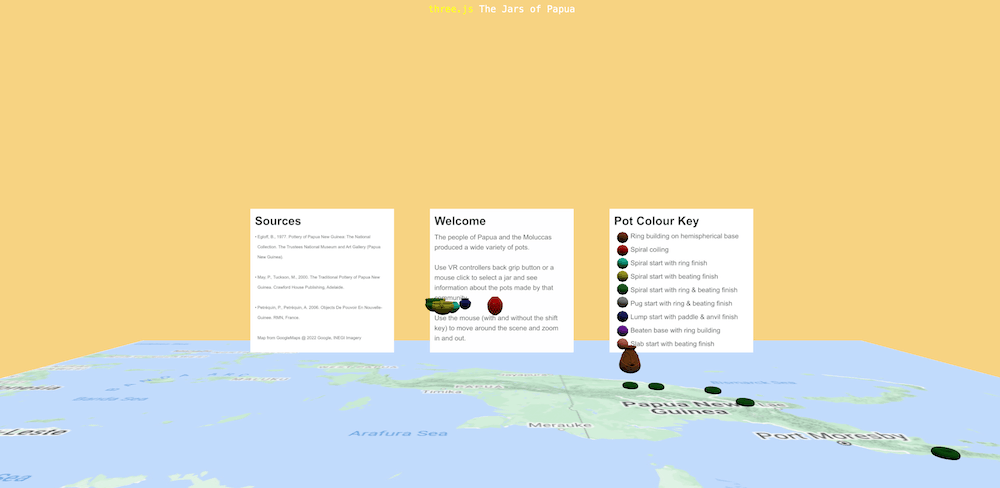
Figure 14. Moving jars, such as the Aibom jar, close to their torus is best done in multiple steps and when viewing the scene directly from the front, side or above.
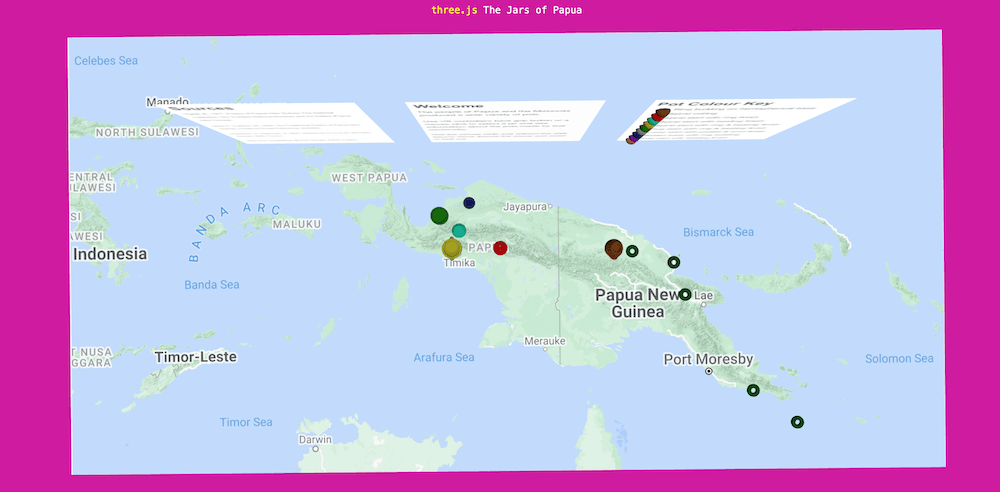
Figure 15. Moving jars while viewing the scene from above helps correctly position jars, triggering a background (random) colour change.
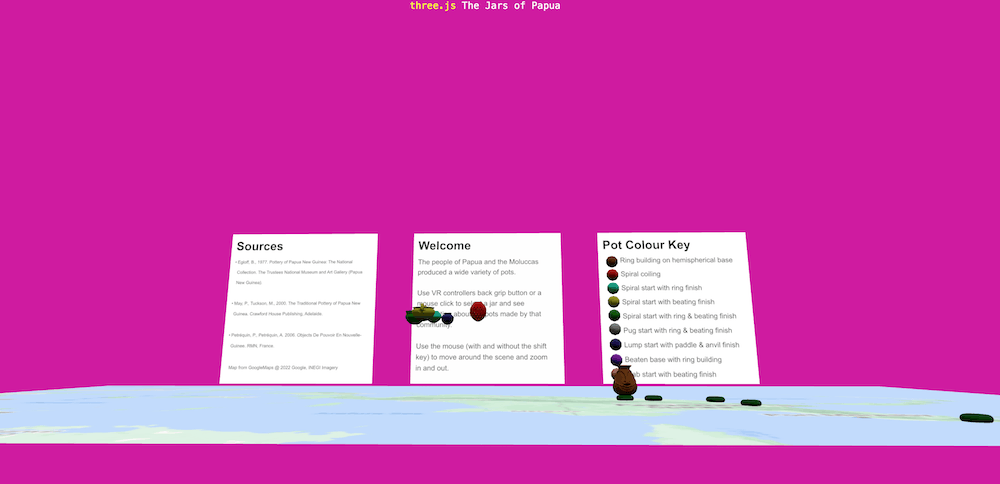
Figure 16. The Aibom jar in its correct position.
Making Matching Easier by Detecting Matches in 2D Space
This way of placing the jars on the sites can be frustrating for users and the onClick function is actually called at the end of a drag event, thus the onClick function can be altered to register a correct match if the drag ends with the mouse on the correct site.
This alternative means that the match is tested in 2D space instead of in 3D space (as in the first approach). Thus matches are easier, especially for players not experienced with digital 3D environments.
If you develop your own games you might want to test different approaches to see what works best. All game and website design guides will advise you that several cycles of user testing and code refinement are important.
Within the onClick function, after the following code:
const found = intersects[ 0 ].object; // get the selected object, index 0 is the first
Add the following code:
if(found == truesite){ // tests if site mouse is over is the same as the true jar site
  // if match change colour of background
  scene.background = new THREE.Color( Math.random() * 0xffffff ); // random
  // click to correct position in case slightly off
  let testposition = new THREE.Vector3(0,0,0); //needs to be something first
  truesite.getWorldPosition( testposition ); //a Vector3 (x,y,z) this is the position of the site
  selectedObject.position.set(testposition.x, testposition.y, testposition.z);
  unmoveable.attach( selectedObject );
  }
Furthermore, the truesite variable needs to be reset to null after testing.
Within the onClick function, after the following code:
  selectedPlane.visible = true; // make the new panel visible
}
Add the following code:
truesite = null;
Be careful with brackets/braces here. The onClick function now has two nested if blocks. The truesite = null; statement should be outside these if blocks, but inside the onClick function.
Now it should be easier to move jars to their sites, but the mouse needs to be directly over the torus when you stop dragging the jar.
Update the Instructions
Lastly, to update the instructions in the first intro panel, change the texture to the intro2.jpg.
Find the following code:
const introTexture = textureLoader.load( 'textures/Intro.jpg' );
The line of code above should be changed to the following:
const introTexture = textureLoader.load( 'textures/Intro2.jpg' );
Save the index.html file, reload the browser and check that the new instructions appear.
Adding Additional Jars
Pots were made in many different forms by different communities in Papua New Guinea, West Papua and Maluku. There are models and information panels for 29 communities in the folders provided.
If you want to experiment with adding them (Figure 17), the following table provides the model name, matching panel texture, location and colour parameter name to use. Each needs variables for the jar, panel and a site/torus (game only). These can be called anything (avoid special characters), but remember to declare them.
| Model | Texture | Position | Colour |
|---|---|---|---|
| abelam.glb | Abelam.jpg | 0.33* ratio, desk + 0.01, -0.06* ratio | coilColor |
| agarabi.glb | Agarabi.jpg | 0.55 * ratio, desk + 0.01, 0.15 * ratio | coilBeatenColor |
| aloalo.glb | Aloalo.jpg | 0.9* ratio, desk + 0.01, 0.49* ratio | ringTopColor |
| bau.glb | Bau.jpg | 0.535* ratio, desk + 0.01, 0.04* ratio | coilColor |
| binadean.glb | Binadean.jpg | 0.76 * ratio, desk + 0.01, 0.34 * ratio | coilBeatenColor |
| boiken.glb | Boiken.jpg | 0.37* ratio, desk + 0.01, -0.08* ratio | coilColor |
| collingwood.glb | Collingwood.jpg | 0.85* ratio, desk + 0.01, 0.4* ratio | wangelaColor |
| demta.glb | Demta.jpg | 0.13* ratio, desk + 0.01, -0.16* ratio | materialColor |
| guhu.glb | Guhu.jpg | 0.65* ratio, desk + 0.01, 0.23* ratio | coilColor |
| huon.glb | Huon.jpg | 0.71* ratio, desk + 0.01, 0.13* ratio | paddleColor |
| ilesales.glb | Ilesales.jpg | -0.34* ratio, desk + 0.01, 0.11* ratio | paddleColor |
| kaiep.glb | Kaiep.jpg | 0.41* ratio, desk + 0.01, -0.07* ratio | paddleColor |
| kombio.glb | Kombio.jpg | 0.29* ratio, desk + 0.01, -0.05* ratio | coilColor |
| lumi.glb | Lumi.jpg | 0.25* ratio, desk + 0.01, -0.08* ratio | coilColor |
| maluku.glb | Maluku.jpg | -0.86* ratio, desk + 0.01, -0.08* ratio | paddleAddColor |
| manus.glb | Manus.jpg | 0.66* ratio, desk + 0.01, -0.2* ratio | paddleColor |
| marik.glb | Marik.jpg | 0.575* ratio, desk + 0.01, 0.079* ratio | coilColor |
| meno.glb | Meno.jpg | 0.28* ratio, desk + 0.01, -0.01* ratio | coilColor |
| moto.glb | Moto.jpg | 0.71* ratio, desk + 0.01, 0.42* ratio | paddleColor |
| pubineri.glb | Pubineri.jpg | 0.53* ratio, desk + 0.01, 0.09* ratio | coilColor |
| triobriand.glb | Triobriand.jpg | 1.01* ratio, desk + 0.01, 0.33* ratio | amphColor |
| tumleo.glb | Tumleo.jpg | 0.27* ratio, desk + 0.01, -0.12* ratio | paddleColor |
| waigeo.glb | Waigeo.jpg | -0.65* ratio, desk + 0.01, -0.35* ratio | paddleAddColor |
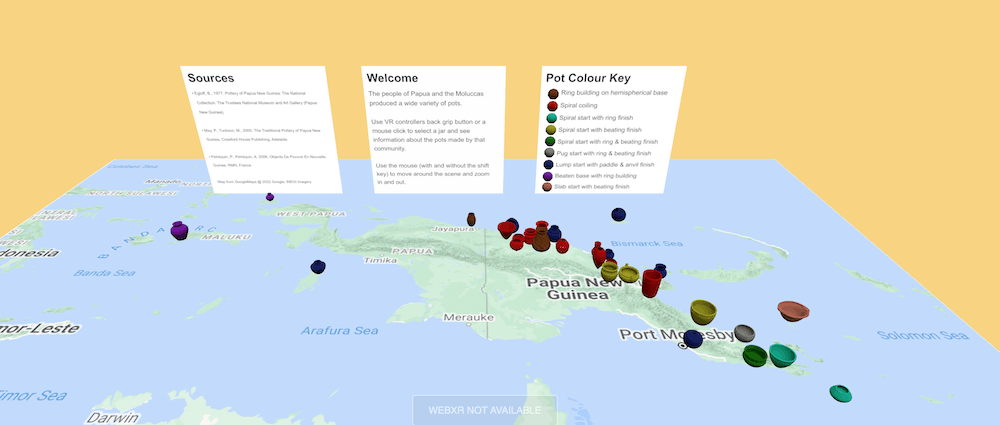
Figure 17. Additional jars can be added to the scene and puzzle.
Conclusion and Next Steps
This has been an introduction to using three.js and the basic concepts in creating 3D scenes. It has shown how creating simple 2D and 3D models; importing more complex models; altering model properties (such as colour, emissiveness, size and visibility); modifying model image textures; raycasting; adding controls (such as orbit and drag controls); using event listeners; and implementing conditional statements, can be combined to make 3D cultural models more informative and engaging. The official three.js website contains links to forums to ask the community for help, and further resources including three.js Fundamentals. The website also shows how much more complex pages can be created, with additions such as animations and sound.
Integrating 3D models into websites allows artefacts to be investigated at different scales, and multiple objects compared across time and/or geographic distance to see how their creation and use varied. Similarities between objects can show cultural contacts between communities and, alongside other evidence, support interpretations of the movement of communities. Differences between objects can reveal local innovation or suggest periods of social disruption. The relationships between the ceramics of Maluku, Papua New Guinea, New Caledonia, Vanuatu, Fiji and other Pacific Island communities are being actively researched, and using 3D vessel models organised by place and time can help with this.
Web-based interactive scenes and games have an important role in communicating research and providing academic and non-academic audiences with new views of the past. Importantly, this includes conveying research findings in interesting ways to communities in places where archaeological excavations have occurred, and to the descendants of the makers of ethnographically studied cultural material. There are many ways cultural heritage models can be used interactively: broken vessels can be put back together6, site contexts could be toggled on and off, or objects could be virtually analysed, with images or measurements from scientific techniques revealed when the object is clicked. Scenes made with three.js can easily be made viewable and manipulatable in VR, which can increase engagement with the models for many viewers.
More broadly, projects such as this aim to support greater awareness of the diversity and significance of cultural practices represented through material artefacts. Scenes and games that include maps can indirectly help educate students and non-students on the locations of countries, or increase their understanding of areas within a country. While users may not necessarily retain specific details, interactive experiences can contribute to a broader understanding of the richness and variation of cultural heritage, and encourage further exploration.
Endnotes
-
Joel Fraenkel and Colin Filer, “Prisoners of a Distant Past? Linguistic Diversity and the Time-Depth of Human Settlement in Papua New Guinea,” World Development 157 (2022): 105921. ↩ ↩2
-
Kathrin Nägele et al., “The Impact of Human Dispersals and Local Interactions on the Genetic Diversity of Coastal Papua New Guinea over the Past 2,500 Years,” Nature Ecology & Evolution (2025), https://doi.org/10.1038/s41559-025-02710-x. ↩
-
Kristine Hardy, Chris Ballard, and Mathieu Leclerc, “Agarabi Pottery Production in the Eastern Highlands of Papua New Guinea,” Journal of Anthropological Archaeology 69 (2023): 101479. ↩ ↩2
-
Dylan Gaffney, “Maintenance and Mutability amongst Specialist Potters on the Northeast Coast of New Guinea,” Cambridge Archaeological Journal 28 (2018): 181–204, https://doi.org/10.1017/S0959774317000737. The clay lumps finished by paddle and anvil are shown in figures 4 and 9 of Gaffney’s article. ↩
-
Jesse Schell, The Art of Game Design: A Book of Lenses (Boca Raton, FL: CRC Press, 2015). ↩
-
Kristine Hardy, “The Creation of ‘Uvira’s Pot,’ a Virtual Reality Puzzle to Promote Engagement with Archaeological Research,” paper presented at Digital Humanities 2023: Collaboration as Opportunity (DH2023), Graz, Austria, 2023. ↩